I recently was actually building a personal app that integrated with 5 different third-party APIs, each having different authentication requirements or API keys to navigate the calls. I normally would just use .http files and be done with it, but I’m a GUI person at heart and as much as I was iterating with the app and these services (across sandbox/prod environments too), navigating the single .http file just as raw text was getting frustrating for me honestly. I was already using the Rest Client for VS Code extension which is great and the absolute simplest and likely widely used. I tried a few other extensions in the marketplace but they have really shifted to be ‘enterprise’ and SaaS based and I just didn’t need all those capabilities or want a service.

So I just decided to have Copilot help me and iterate on a plan and implementation…and decided to call it “Endpoint” and here we are.
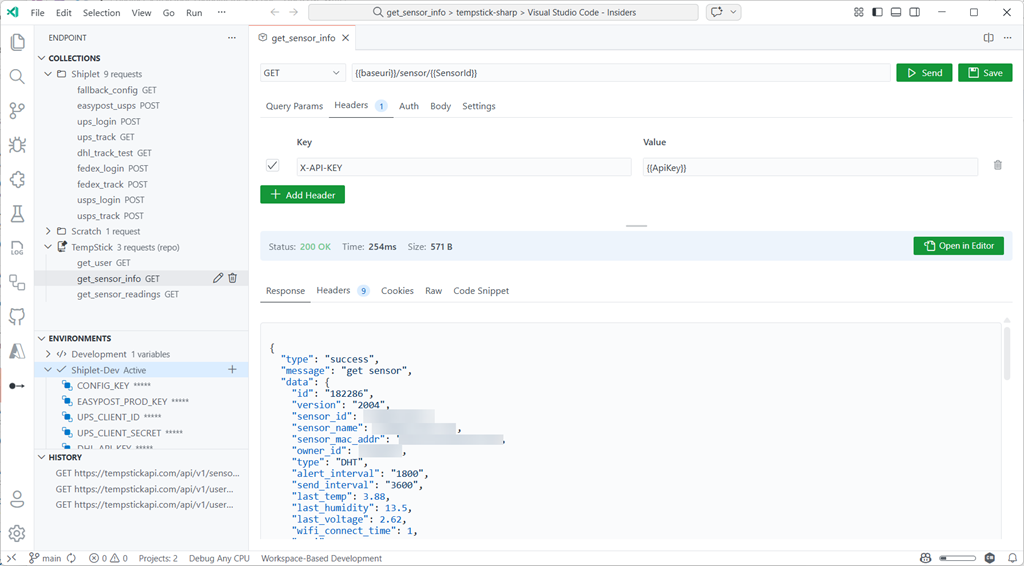
Screenshot of Endpoint for VS Code

It’s basically a REST client, but biased hard toward *staying inside the editor* and keeping your requests portable.

What problem this is trying to solve (for me)

There are already a lot of ways to “test an endpoint.” This isn’t meant to be a hot take about existing tools. This is more like: what do I personally want when I’m iterating fast and gives me a structured way of seeing output?

For me the pain points are:

  • I want an API client that feels like part of VS Code: Same theme, same UX expectations, no “external app” vibe.
  • I want requests to be roaming with me, or shareable in the repo just like .http files: If a request is useful, I want it in source control not in a service.
  • I want multi-step flows to be easy: The classic “call login, grab token, call the real endpoint” loop.
  • I wanted some level of compatibility with the .http format because I do use multiple tools

Endpoint is my attempt at optimizing those loops for me.

But don’t `.http` files already do this?

Yep — and that’s actually part of the point. I like `.http` files because they’re **portable**, **diffable**, and **live well in source control**. If all you need is “a request in a file that I can run,” `.http` is a great answer and REST Client is a great simple tool!

Endpoint leans into that by supporting import/export so you can move between the file format and the GUI workflow. In other words: even if you don’t start in `.http`, you can end up there (and vice versa). Endpoint isn’t trying to replace that model; it’s a selfish tool for GUI lovers who want something around the same workflow and make it easier, intuitive, and graphical:

  • A native GUI for editing params/headers/auth/body without living in raw text all day
  • Collections + defaults (shared headers/auth/variables) so you don’t repeat yourself
  • Environments that are quick to switch (and don’t accidentally leak secrets into git)
  • Chaining + pre-requests for the auth/multi-step reality of modern APIs
  • Code snippets if you need bridge from “it works” to “ship it in the app”

So if you already have `.http` files you love, cool — keep them. Endpoint is me acknowledging that the file format is great, but I personally wanted fewer papercuts while iterating.

Why not just persist everything as `.http` all the time?  Mostly because the GUI needs a structured model (headers on/off, auth type fields, body mode, collection defaults/inheritance, secret handling, etc.). You *can* represent a lot of that in text, but you quickly end up either losing fidelity or inventing extra conventions. I chose to persist a richer model for the day-to-day workflow, and then use import/export as the compatibility layer when you want the portable file representation.

What about other existing GUI tools?

Yep, there are a good set of ones out there that are incredibly rich. Some are mostly freemium models too though. And some may not be able to be used in certain environments because of organizational policies. These are all fantastic tools, but they didn’t work for my every need, so I just selfishly wanted my own flow…which I acknowledge may not work for anyone else’s need :-).  But by all means, the ones out there are super popular, incredibly powerful, and do way more for advanced scenarios.

What Endpoint gives me (in practice)

At a high level, it’s a request builder + response viewer that stays inside VS Code. The part I care about isn’t the checklist of features — it’s that the whole loop (edit → send → inspect → tweak → repeat) happens without me leaving the editor.
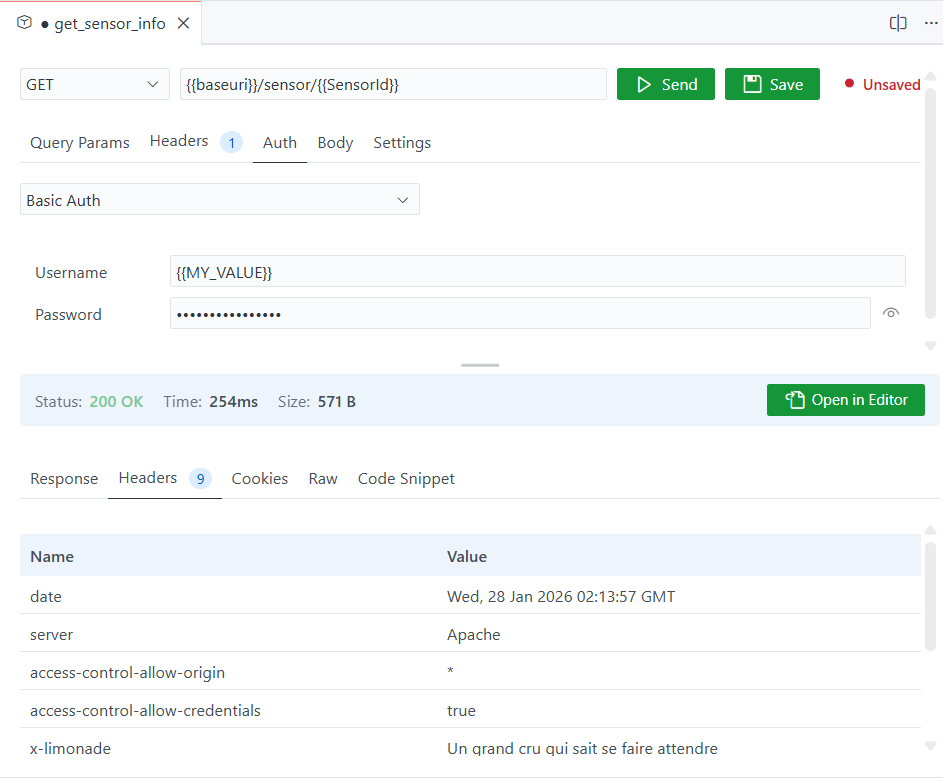
Screenshot of the Endpoint split pane

The mental model is simple: Collections for grouped project scopes and saved requests, Environments for variables, and a simple split request/response view with the most important things at the surface.

The small set of things I reach for most:

  • Variables + `.env` support so I’m not hardcoding base URLs or keys (supports .env files, or stored in VS Code SecretStorage)
  • Repeatable/shared/inherited properties for headers and auth
  • Chaining / pre-requests for “login then use token” flows
  • Roaming saved collections across machines – even when I’m not wanting to persist these to team repo yet
  • Export/import for when I want to serialize for sharing broadly if needed

I’m still iterating, but those cover 90% of my day-to-day.

Summary

This isn’t meant to replace every API tool ever as I mentioned. Nearly every tool I create starts for extremely selfish reasons. It’s optimized for the thing I do the most: tight inner-loop iteration while already living in VS Code.

If you need heavyweight collaboration features, deep test scripting, or a bunch of external integrations, this isn’t going to be it and you might still prefer something else.

But if your primary pain is “I just want to hit this endpoint while I’m validating, and I don’t want to leave the editor and have the same editor UI,” then this has been a meaningful productivity boost for me and maybe for you.


Install in VS Code Install in VS Code Insiders

Feel free to try it out and log issues as you face them using “Report Issue” in VS Code!

When I first started using AI in my developer workflow, I treated it like a smarter search engine.

Short prompts. Minimal context. Very atomic asks. And usually in the editor as a comment, triggering the completions flow is where I operated!

“Write me a regex for X.”
“Why is this failing?”
“Convert this to C#.”

Image showing using comments as a prompt

Sometimes it worked. Often it didn’t. And when it didn’t, my instinct was to tweak a word or two and try again, the same way I would refine a Google query. That mindset held me back longer than I realized.

Early Exploration: Terse Prompts, Terse Results

Those early days were mostly frustration disguised as curiosity. I was optimizing for speed, not clarity. I would fire off a one-liner, get something half right, then either patch it myself or throw it away.

The ‘early days’ is also funny to think about how fast things are moving. I’ll acknowledge that the models I was using as an early adopter also were not as advanced as they are as of this writing in January 2026, nor will be in a month, 2 months, 3 months from now! The breadth of models and their capabilities is one of the rapid accelerations in this space.

What I didn’t appreciate at the time was that I was giving the model no room to reason. I was asking for outcomes without offering intent. No constraints. No tradeoffs. No plan.

AI isn’t terrible at this, but it is also not where it shines. I was leaving a lot of capability on the table.

The Shift: Planning First, Prompting Second

The biggest unlock for me wasn’t a new model. It was planning. I saw my peers like Pierce Boggan really leverage a two-phased approach using custom prompts (what we called ‘chat modes’ earlier) around Planning and Implementation.  Pierce shared some early iterations around how he did that and I found myself really starting to switch to these modes (here is what I used to use: Planning, Implementation).

Once I started explicitly asking the AI to plan before writing code, everything changed. Instead of jumping straight to implementation, I would ask for a high-level approach, assumptions, risks, tradeoffs, and open questions.

This became useful not just for greenfield projects, but especially for bigger features inside existing systems. The kind of work where you need to think about impact radius, backwards compatibility, and how something will age over time.

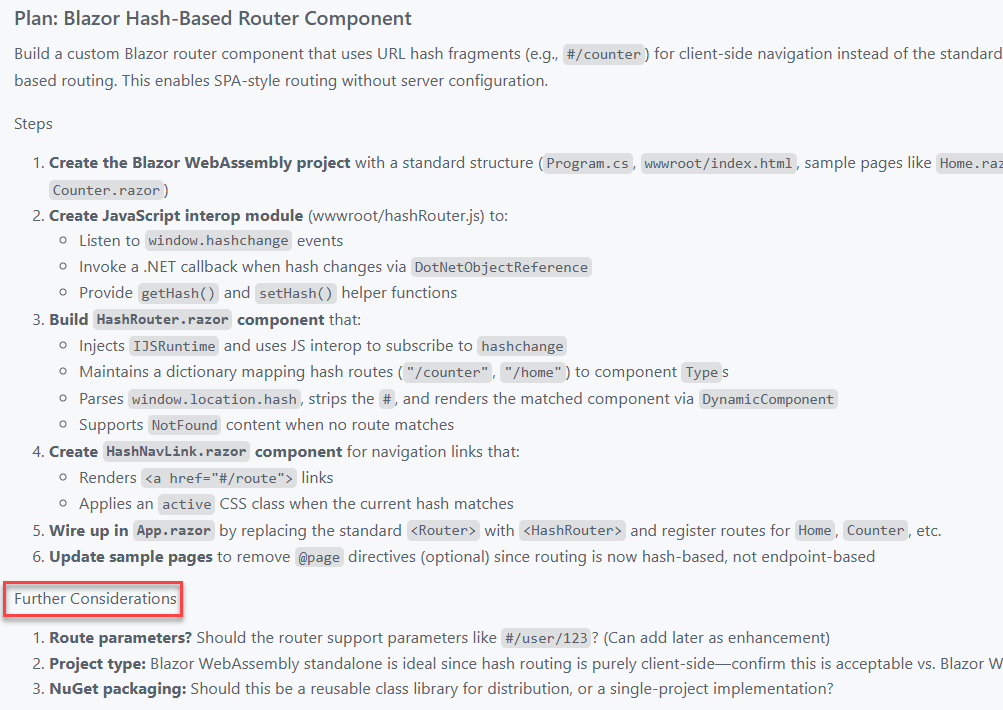
This planning mode is now built in to nearly every tool. There are some heavier-weight workflows like SpecKit and things that require some ‘constitution’ setup and if that’s for you, that’s great. Those also can be re-usable inputs to any planning mode as well. For me an open slate has been fine and I just iterate IN planning mode and ensure that I address any follow-ups

Screenshot of a plan chat in VS Code with Copilot

The real step change came when I started persisting those plans as an artifact and task list (again, before task-tracking was in any of the tools I used).

I now drop them into a /docs/ folder. Sometimes they are lightweight notes. Sometimes they look more like a product requirements document. Either way, they live alongside the code. That means they are reviewable, shareable, and reusable.

Treating that conversation as an artifact was not only a context-saving changer, but also a time one! Those documents also become prompts. I didn’t have to rely on memory sessions and instead could get back later and start prompting with “Let’s work on part 3 of the plan now” and Copilot could pick right up with all the context. When I come back days or weeks later, I can feed the plan back into the model and say, “Continue from here.” That continuity has been incredibly valuable. So when offered to ‘start implementation’ or save the plan…always opt to save the plan!

Agents and Longer-Lived Context

From there, moving into agents felt natural.

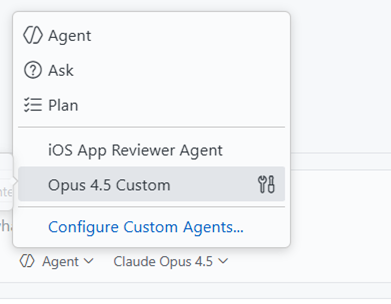
I have been starting many projects using Burke Holland’s Opus Agent, and it was a great on-ramp. What clicked for me was not just the output, but the structure.

Screenshot of choosing a custom agent in VS Code

Sub-agents handling focused tasks. Instructions that evolve as the project evolves. A clearer separation between thinking and doing. Instructions to also persist new-learnings for the benefit of later sessions. This part of the prompt can’t be stated enough how valuable it is.  Here’s the snippet:

Each time you complete a task or learn important information about the project, you should update the `.github/copilot-instructions.md` or any `agent.md` file that might be in the project to reflect any new information that you've learned or changes that require updates to these instructions files.

That structure maps much more closely to how I actually work as a developer. Iterative. Layered. Occasionally opinionated.

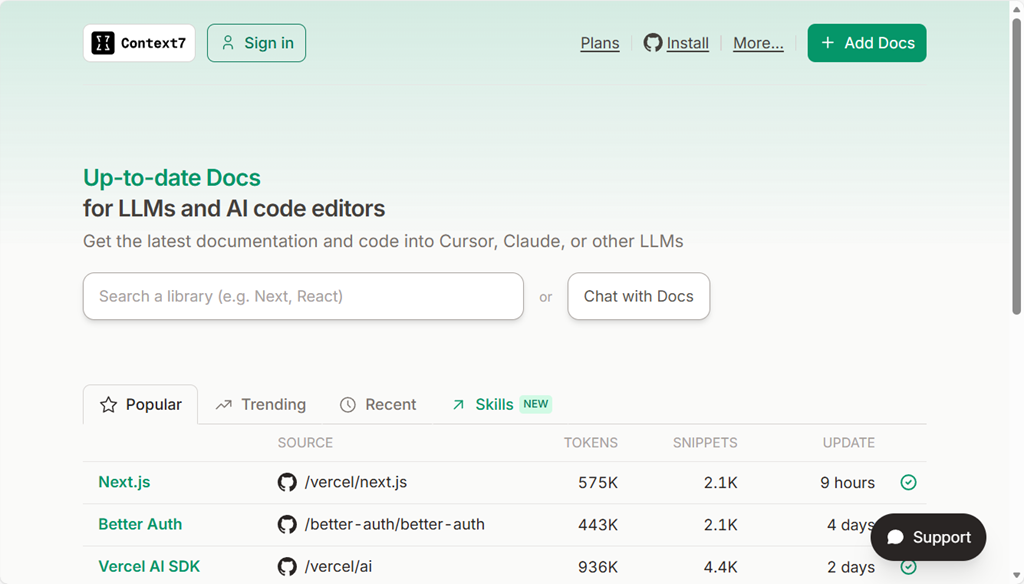
Context helpers are also essential. I’ve found Context7 (who was a first mover in the MCP server context race) to be fantastic for my needs so far! It serves as part of the researcher in this custom agent fetching information about frameworks, documentation about guidelines, blog posts that might be helpful, and reasoning with all of that to provide me with some well-rounded options. Seriously, use it.

Image of the Context7 web site

Sessions, State, and Knowing When to Start Fresh

Another habit I have had to learn is session management.

I now treat a new problem like opening a new terminal window. If I am switching domains, rethinking an approach, or starting a distinct feature, I open a new session.

That reset matters. It avoids dragging along stale assumptions and accidental context. State is powerful, but only when it is intentional.

Different Models for Different Jobs

I also no longer believe there is a single best model. This has really been where the massive advancements have taken place in my opinion. GPT was amazing, until Claude Sonnet 3.x came out, until Claude Sonnet 4.5 came out, until Claude Opus 4.5 came out, until Gemini Pro 3, etc, etc.

Right now, my personal defaults look like this:

    • Opus 4.5 for coding and deeper technical reasoning
    • Gemini Pro for UI exploration and visual-adjacent thinking
    • “-mini” variants at time for some speed needs

      They have different strengths, and leaning into that has made the workflow feel more like a toolbox and less like a magic button. Your own mileage may vary depending on the tech, problem space, and tool you are using. Try them all is my advice and you’ll settle on one that works with your style, your tooling and your desired output you prefer. I focus on finding the one to help me complete the ‘job to be done’ versus any bias I have on whether it is good for any given framework I may be familiar with.

      Debug inner-loop

      I’ve also got a lot more comfortable with debugging with the Copilot in my inner-loop. If I have any error that wasn’t caught in build (where Copilot would normally see it and fix), or a UI that isn’t quite right, or an output that is wrong…I just copy paste that into that same fix session (or use a new one if a new problem) and sometimes just say “fix it.” Quite literally I’ve taken screenshots, pasted, said “fix it” and it does – interpreting the image, the issue, and scoping the fix. Amazing iterative process for most things! Heck I even pasted Apple App Store rejection notes into a new session “app got rejected, here was the notes” and BOOM with confidence it started to get to work Ah, I see where <appname> is violating this guideline, I’ll work on a fix… These moments make me smile every time.

      An Honest Take: I Still Prefer a GUI

      One thing worth saying out loud is that I still strongly prefer working in a GUI. Sorry, I’m just old I guess.

      A lot of AI tooling momentum right now is centered around the CLI. Agents that live in terminals. Prompts piped through commands. Workflows that assume you want to live in a shell all day.

      While I can do that, I do not particularly enjoy it. For me, the CLI experience is not intuitive.

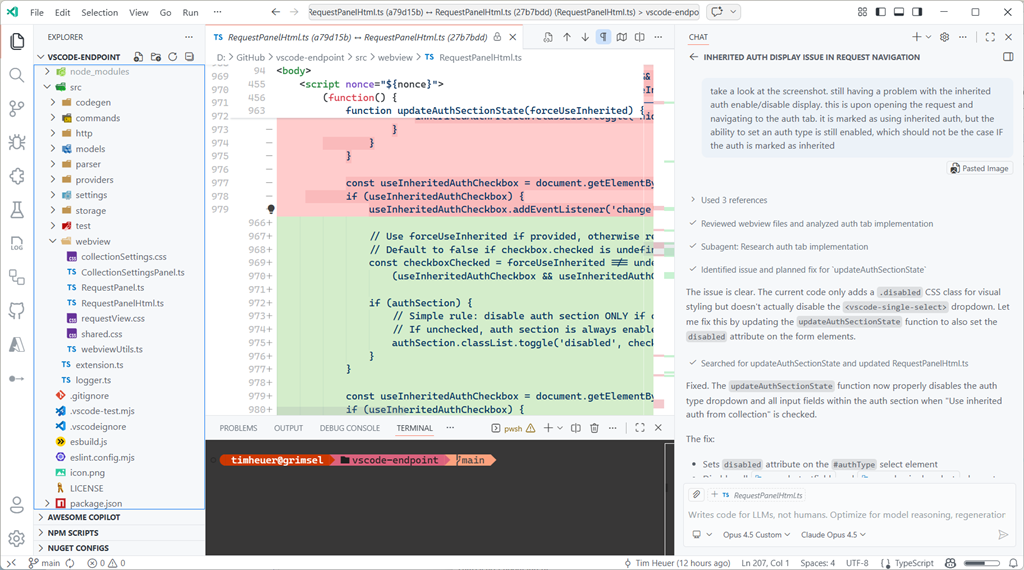
      I am far more effective inside environments like VS Code or Visual Studio, where I already live. I can review code visually and contextually. I can leverage other extensions alongside AI. I can navigate files, diffs, tests, logs, and resources in one place. I can reason about the project as a whole, not just a stream of text. That familiarity matters. AI works best for me when it is embedded into that environment, not when it pulls me out of it. When I am already thinking about a feature, a refactor, or a bug, I want the AI to meet me there rather than forcing a context switch just to interact with it. Easier for me to mentally see other context, relationship to my repo, quick diff reviewing, etc.

      Screenshot of a coding session in VS Code

      This also ties back to planning. Having plans, docs, and context living next to the code makes everything easier to review, validate, and evolve. The GUI is not just comfort. It is leverage.

      I know plenty of developers feel the opposite, and that is great. This is just what works best for me. And I acknowledge just like my transition to using AI, my transition to using different methods of development will also evolve I’m sure. I’m personally just not seeing a huge benefit to moving to a CLI-only flow for what I do development on these days – I don’t need 10 terminal instances running at one time.

      Acknowledging the Privilege

      One thing I do not want to gloss over is that this workflow is enabled by paid plans. That matters. Not everyone can or should stack subscriptions just to experiment.

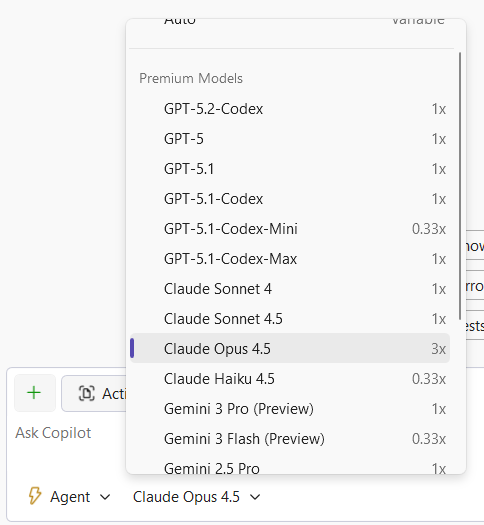
      Screenshot of model selection in Visual Studio

      I am fortunate to be able to explore these tools deeply, and I try to stay conscious of that when talking about what has worked for me. I’m starting to pay more close attention to what feeds into my context window either on-purpose or accidental as I know it impacts token-based billing and just efficiency of the LLM as well.

      Where I Have Landed

      AI has not replaced how I build software. It has changed how I think while building it.

      I plan more.  
      I am clearer about intent.
      I have found a ‘peer’ to communicate with, not command. The more I can express as I would with a co-worker, the greater success I find.

      And ironically, those improvements would still pay off even if the AI disappeared tomorrow.

      That might be the biggest takeaway for me. The most valuable part of integrating AI into my workflow was not automation. It was becoming a more deliberate developer.

      Have you heard about .NET Aspire yet? If not, go read, then maybe watch. It’s okay I’ll wait.

      Ok, great now that you have some grounding, I’m going to share some tips time-to-time of things that I find delightful that may not be obvious.  In this example I’m using the default .NET Aspire application template and added an ASP.NET Web API with enlisting into the orchestration. What does that mean exactly? Well the AppHost project (orchestrator) now has a reference to the project like so:

      var builder = DistributedApplication.CreateBuilder(args);
      
      builder.AddProject<Projects.WebApplication1>("webapplication1");
      
      builder.Build().Run();
      

      When I run the AppHost it launches all my services, etc. Yes this is a VERY simple case and only one service…I’m here to make a point, stay with me.

      If in my service I add some Aspire components they may come with their own configuration information. Things like connection strings or configuration options for the components. A lot of times these will result in environment variables at deploy time that the components will read. You can see this if you run and inspect the environment variables of the app:

      Screenshot of .NET Aspire dashboard environment variables

      But what if I have a configuration/variable that I need to set that isn’t coming from a component? I want that to be a part of the application model so that the orchestrator puts things in the right places, but also deployment tooling is aware of my whole config needs. No problem, here’s a quick tip if you haven’t discovered it yet!

      I want a config value in my app as MY_ENV_CONFIG_VAR…a very important variable. It is a value my API needs as you can see in this super important endpoint:

      app.MapGet("/somerandomconfigvar", () =>
      {
          var config = builder.Configuration.GetValue<string>("MY_ENV_CONFIG_VAR");
          return config;
      });
      

      How can I get this in my Aspire environment so the app model is aware, deployment manifests are aware, etc. Easy. In the AppHost change your AddProject line to add a WithEnvironment() call specifying the variable/value to set. Like this:

      var builder = DistributedApplication.CreateBuilder(args);
      
      builder.AddProject<Projects.WebApplication1>("webapplication1")
          .WithEnvironment("MY_ENV_CONFIG_VAR", "Hello world!");
      
      builder.Build().Run();
      

      Now when I launch the orchestrator runs all my services and adds them to the environment variables for that app:

      Screenshot of .NET Aspire dashboard environment variables

      And when I produce a deployment manifest, that information is stamped as well for deployment tools to reason with and set in their configuration way.

      {
        "resources": {
          "webapplication1": {
            "type": "project.v0",
            "path": "..\\WebApplication1\\WebApplication1.csproj",
            "env": {
              "OTEL_DOTNET_EXPERIMENTAL_OTLP_EMIT_EXCEPTION_LOG_ATTRIBUTES": "true",
              "OTEL_DOTNET_EXPERIMENTAL_OTLP_EMIT_EVENT_LOG_ATTRIBUTES": "true",
              "MY_ENV_CONFIG_VAR": "Hello world!"
            },
            "bindings": {
              "http": {
                "scheme": "http",
                "protocol": "tcp",
                "transport": "http"
              },
              "https": {
                "scheme": "https",
                "protocol": "tcp",
                "transport": "http"
              }
            }
          }
        }
      }
      

      Pretty cool, eh? Anyhow, just a small tip to help you on your .NET Aspire journey.

      Recently, the .NET team released a starter Codespaces definition for .NET.  There is a great narrated overview of this and the benefit, uses, etc. by the great James Montemagno you can watch here:

      Unbelievable Instant .NET Development Setup. It is available when you visit https://github.com/codespaces and you can start using it immediately.

      Screenshot of Codespaces Quickstarts

      Codespaces are built off of the devcontainer mechanism, which allows you to define the environment in a bunch of different ways using container images or just a devcontainer image.  I won’t go through all the options you can do with devcontainers, but will share the anatomy of this and what I like about it.

      NOTE: If you don’t know what Development Containers are, you can read about them here https://containers.dev/

      Throughout this post I’ll be referring to snippets of the definition but you can find the FULL definition here: github/dotnet-codespaces.

      Base Image

      Let’s start with the base image. This is the starting point of the devcontainer, the OS, and pre-configurations built-in, etc. You can use a Dockerfile definition or a pre-defined container image. I think if you have everything bundled nicely in an existing container image in a registry, start there. Just so happens, .NET does this and has nice images with the SDK already in them, so let’s use that!

      {
          "name": ".NET in Codespaces",
          "image": "mcr.microsoft.com/dotnet/sdk:8.0",
          ...
      }
        

      This uses the definition from our own container images defined here: https://hub.docker.com/_/microsoft-dotnet-sdk/. Again this allows us a great/simple starting point.

      Features

      In the devcontainer world you can define ‘features’ which are like little extensions someone else has done to make it easy to add/inject into the base image. One aspect of adding things can be done through pre/post scripts, but if someone has created a ‘feature’ in the devcontainer world, this makes it super easy as you delegate that setup to this feature owner. For this image we’ve added a few features:

      {
          "name": ".NET in Codespaces",
          "image": "mcr.microsoft.com/dotnet/sdk:8.0",
          "features": {
              "ghcr.io/devcontainers/features/docker-in-docker:2": {},
              "ghcr.io/devcontainers/features/github-cli:1": {
                  "version": "2"
              },
              "ghcr.io/devcontainers/features/powershell:1": {
                  "version": "latest"
              },
              "ghcr.io/azure/azure-dev/azd:0": {
                  "version": "latest"
              },
              "ghcr.io/devcontainers/features/common-utils:2": {},
              "ghcr.io/devcontainers/features/dotnet:2": {
                  "version": "none",
                  "dotnetRuntimeVersions": "7.0",
                  "aspNetCoreRuntimeVersions": "7.0"
              }
          },
          ...
      }
      

      So here we see that the following are added:

      • Docker in docker – helps us use other docker-based features
      • GitHub CLI – why not, you’re using GitHub so this adds some quick CLI-based commands
      • PowerShell – an alternate shell that .NET developers love
      • AZD – the Azure Developer CLI which helps with quick configuration and deployment to Azure
      • Common Utilities – check out the definition for more info here
      • .NET features – even though we are using a base image, in this case .NET 8, there may be additional runtimes we need so we can use this to bring in more. In this case this is needed for one of our extensions customizations that need the .NET 7 runtime.

      This enables the base image to append additional functionality when this devcontainer is used.

      Extras

      You can configure more extras through a few more properties like customizations (for environments) and pre/post commands.

      Customizations

      The most common used configuration of this section is to bring in extensions for VS Code. Since Codespaces default uses VS Code, this is helpful and also carries forward if you use VS Code locally with devcontainers (which you can do!).

      {
          "name": ".NET in Codespaces",
          ...
          "customizations": {
              "vscode": {
                  "extensions": [
                      "ms-vscode.vscode-node-azure-pack",
                      "github.vscode-github-actions",
                      "GitHub.copilot",
                      "GitHub.vscode-github-actions",
                      "ms-dotnettools.vscode-dotnet-runtime",
                      "ms-dotnettools.csdevkit",
                      "ms-dotnetools.csharp"
                  ]
              }
          },
          ...
      }
      

      In this snippet we see that some VS Code definitions will be installed for us to get started quickly:

      • Azure Extensions – a set of Azure extensions to help you quickly work with Azure when ready
      • GitHub Actions – view your repo’s CI/CD activity
      • Copilot – AI-assisted code development
      • .NET Runtime – this helps with any runtime acquisitions needed by activity or other extensions
      • C#/C# Dev Kit – extensions for C# development to make you more productive in the editor

      It’s a great way to configure your dev environment to be ready to start when you use devcontainers without spending time hunting down extensions again.

        Commands

        Additionally you can do some post-create commands that may be used to warm-up environments, etc. An example here:

        {
            "name": ".NET in Codespaces",
            ...
            "forwardPorts": [
                8080,
                8081
            ],
            "postCreateCommand": "cd ./SampleApp && dotnet restore",
            ...
        }
        

        This is used to get the sample source ready to use immediately by restoring dependencies or other commands, in this case running the restore command on the sample app.

        Summary

        I am loving devcontainers. Every time I work on a new repository or anything I’m now looking first for a devcontainer to help me quickly get started. For example, I recently explored a Go app/repo and don’t have any of the Go dev tools on my local machine and it didn’t matter. The presence of a devcontainer allowed me to immediately get started with the repo with the dependencies and tools and let me get comfortable. And portable as I can navigate from machine-to-machine with Codespaces and have the same setup needed by using devcontainers!

        Hope this little insight helps.  Check out devcontainers and if you are a repo owner, please add one to your Open Source project if possible!

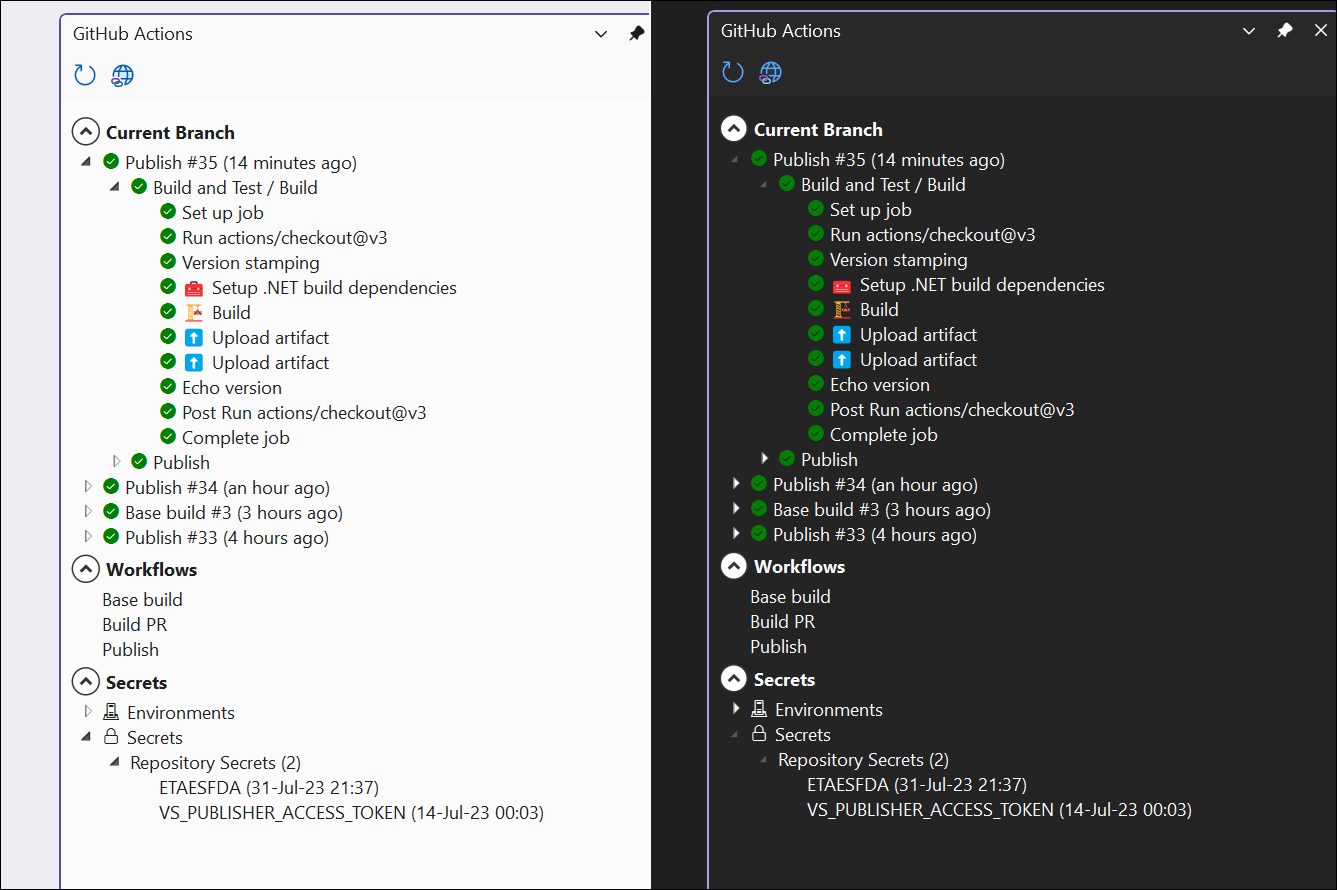
        I LOVE GitHub Actions! I’ve written about this a lot and how I’ve ‘seen the light’ with regard to ensuring CI/CD is a part of any/every project from the start. That said I’m also a HUGE Visual Studio fan/user.  I like having everything as much as possible at my fingertips in my IDE and for most basic things not have to leave VS to do those things.  Because of this I’ve created GitHub Actions for Visual Studio extension that installs right into Visual Studio 2022 and gives you immediate insight into your GitHub Actions environment. 

        Screenshot of light/dark mode of extension

        Like nearly every one of my projects it starts as completely selfish reasons and tailored to my needs. I spend time doing this in some reserved learning time and the occasional time where my family isn’t around and/or it’s raining and I can’t be on my bike LOL. That said, it may not meet your needs, and that’s okay.

        With that said, let me introduce you to this extension…

        How to launch it

        First you’ll need to have a project/solution open that is attached to GitHub.com and you have the necessary permissions to view this information. The extension looks for GitHub credentials to use interacting with your Windows Credential manager. From VS Solution Explorer, right-click on a project or solution and navigate to the “GitHub Actions” menu item.  This will open a new tool window and start querying the repository and actions for more information.  There is a progress indicator that will show when activity is happening.  Once complete you’ll have a new tool window you can dock anywhere and it will show a few things for you, let’s take a look at what those are.

        Categories

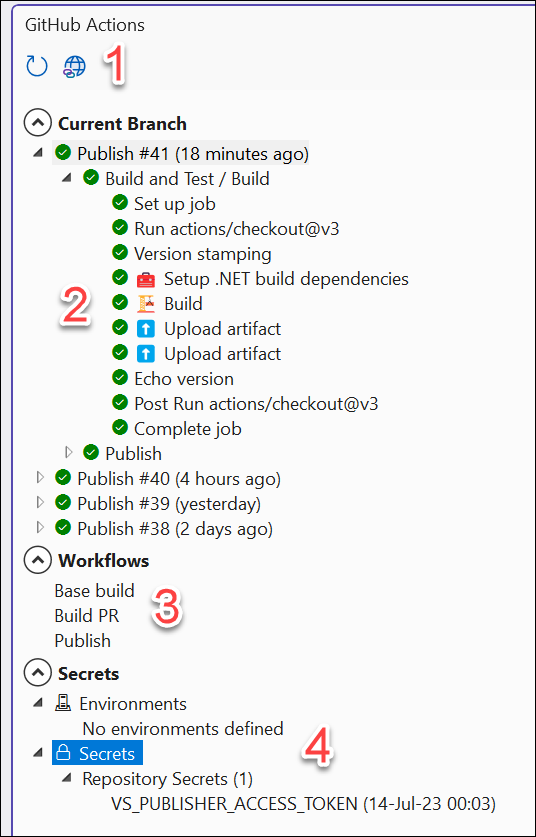
        In the tool window there are 4 primary areas to be aware of:

        Screenshot of the tool window annotated with 4 numbers

        First in the area marked #1 is a small toolbar.  The toolbar has two buttons, one to refresh the data should you need to manually do so for any reason. The second is a shortcut to the repository’s Actions section on GitHub.com.

        Next the #2 area is a tree view of the current branch you have open and workflow runs that targeted that.  It will first show executed (or in-progress) workflow runs, and then you can expand it to see the jobs and steps of each job.  At the ‘leaf’ node of the step you can double-click (or right-click for a menu) and it will open the log for that step on GitHub.com directly.

        The #3 area is a list of the Workflows in your repository by named definition. This is helpful just to see a list of them, but also you can right-click on them and “run” a workflow which triggers a dispatch call to that workflow to execute!

        Finally the #4 area is your Environments and Secrets. Right now Environments just shows you a list of any you have, but not much else. Secrets are limited to Repository Secrets only right now and show you a list and when the secret was last updated.  You can right-click on the Secrets node to add another or double-click on an existing one to edit.  This will launch a quick modal dialog window to capture the secret name/value and upon saving, write to your repository and refresh this list.

        Options

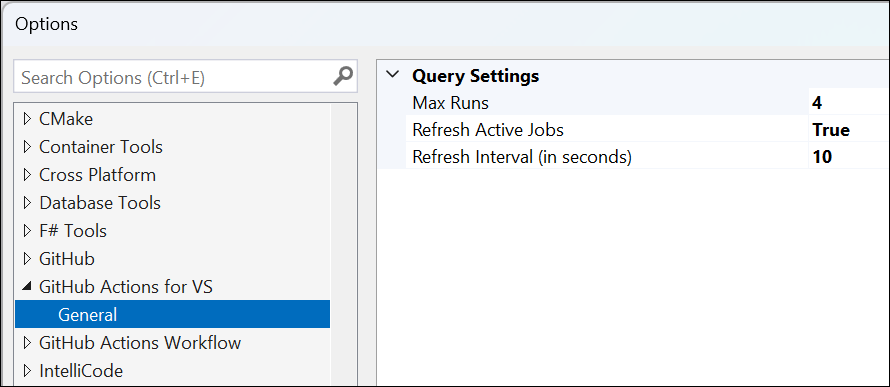
        There are a small set of options you can configure for the extension:

        Screenshot of extension options

        The following can be set:

        • Max Runs (Default=10): this is the maximum number of Workflow Runs to retrieve
        • Refresh Active Jobs (Default=False): if True, this will refresh the Workflow Runs list when any job is known to be in-progress
        • Refresh Interval (Default=5): This is a number in seconds you want to poll for an update on in-progress jobs.

        Managing Workflows

        Aside from viewing the list there are a few other things you can do using the extension:

        • Hover over the Run to see details of the final conclusion state, how it was triggered, the total time for the run, and what GitHub user triggered the run
        • If a run is in-progress, right-click on the run and you can choose to Cancel, which will attempt to send a cancellation to stop the run at whatever step it is in
        • On the steps nodes you can double-click or right-click and choose to view logs.  This will launch your default browser to the location of the step log for that item
        • From the Workflows list, you can right-click on a name of a Workflow and choose “Run Workflow” which will attempt to signal to run the start a run for that Workflow

        Managing Secrets

        Secrets right now are limited to Repository Secrets only.  This is due to a limitation the Octokit library this extension uses.  If you are using Environment Secrets you will not be able to manage them from here. 

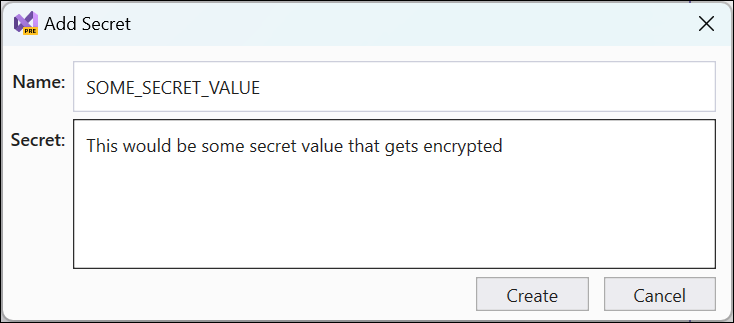
        Screenshot of modal dialog for secret editing

        Otherwise:

        • From the Repository Secrets node you can right-click and Add Secret which will launch a modal dialog to supply a name/value for a new secret. Clicking save will persist this to your repo and refresh the list.
        • From an existing secret you can double-click it or right-click and choose ‘Edit’ and will launch the same modal dialog but just enables you to edit the value only.
        • To delete a secret, right-click and choose delete. This is irreversible, so be sure you want to delete!

        Get Started and Log Issues

        To get started, you simply can navigate to the link on the marketplace and click install or use the Extension Manager in Visual Studio and search for “GitHub Actions” and install it.  If you find any issues, the source is available on my GitHub at timheuer/GitHubActionsVS but also would appreciate that you could log an Issue if you find it not working for you.  Thanks for trying it out and I hope it is helpful for you as it is for me.