It has been six months since installing my initial infrastructure to move away from paid television and toward a goal of free, digital/HDTV broadcast in my home.  On my last post - My move to free HDTV Part 2 -- it was about HD HomeRun to the rescue for a tuner solution to broadcast to my chosen infrastructure.

To recap, my goals:

  • To get free network channels in HDTV quality
  • To broadcast to my two primary rooms
  • To enable DVR capabilities

My setup includes the following:

  • Philips MANT940 – UHF digital antenna.  This is connected to a coaxial cable that was pre-wired in my home going from the attic to my structured wiring panel in my home.
  • HD HomeRun – my antenna feed connects (well, first through a splitter – more on why later) to the HDHR unit here.  I’m only using one tuner although I have the two-tuner model (can’t remember why I bought that model, probably wasn’t paying attention).
  • Windows 7 Ultimate – I have a 64-bit machine with 6GB RAM and 1TB of drive space that acts as my Media Center and receives the HDHR broadcast.  Media Center serves as my DVR.
  • XBOX 360 (2) – These serve as my Media Center extenders as well as additional TV options.  I also receive Netflix streaming through one of them via my XBOX Live account.
  • PlayOn – This software is installed on my same Media Center machine and provide capability to watch Hulu and other online TV broadcasts including Netflix as well.
  • My Movies for Windows Media Center – this is a plugin/software for Media Center (that also works for extenders) that enables a better movie management option for your digital movie collection.  Full Disclosure: As a Microsoft employee I did get a deal on this software.  After seeing the value, I think the $100 is worth it if you have a large movie collection and watch them via Media Center.

The Success

I can say that I’ve reached success.  I am free of cable television bills for now and enjoy watching my desired television stations in crystal clear HDTV.  After my feeling of initial loss of my TiVo units, I haven’t missed them.  The TiVo interface is much more simplistic, but I have not lost functionality in moving to Media Center as my DVR component.

HD HomeRun has been the critical piece in this success.  I have a structured wiring system in my home and the ability to broadcast that signal from there is ideal.  There are some downsides which you can read about below.  The HDHR unit took some getting used to when setting it up, but that was a one-time task once my antenna was properly placed and I did a scan of available channels.  I not only receive local channels, but I’m close enough to some southern cities in Arizona and receive their stations as well (granted a lot of network duplicates).

I have the HDHR with 2 tuners which I initially thought was going to be worthless since I only had one input – my antenna.  Then I realized that I could still re-use my splitter in my structured wiring panel and get the antenna feed and provide two inputs.  This hasn’t really become a necessity yet (only would if two people wanted to watch two different channels), but nice to know it is there.

My XBOX/Media Center Extender in my main room starts up in Media Center mode to help those who just want to watch TV (more on why later in the failures section).  Downstairs where we watch more movies and Netflix streaming, it starts in normal XBOX dashboard mode.

Another key piece of this setup is the remote controls.  I have the Harmony 659 and 680 that I’ve had for a while.  While they work nice, they don’t map very well to the XBOX dashboard/Media Center controls.  They don’t have easy ‘back’ button integration (the 659 is old for sure and lacks a lot more) as well as some other easy function mapping on existing buttons rather than custom menu options.  I remembered recently that I did have the Logitech Harmony for XBOX remote.  This is an older version than their 510 model which is similar and has generic color buttons for other game consoles.  After remembering this I reconfigured my XBOX remote upstairs, removing the 659 from the picture.  This has proven so far to be a better decision as the remote maps a lot better to physical named buttons (Back, Info, Next, etc.) than using custom options that nobody was reading/understanding.  I highly recommend using the 510 or the XBOX remote for this instead of the fancier models they currently sell.  These two are adequate.  I’ll actually be picking up another XBOX remote for downstairs to replace the 680.

Some failures

I don’t think any success comes without failures :-) -- nor did mine.  Here are some of my issues…some of which may be deal-breakers for anyone else.

  • Sports – I’m not a sports fan.  Not enough at least that I must watch Monday Night Football or college games, etc.  I consider myself a ‘championship’ sports fan (Super Bowl, World Series, etc.).  If you are a sports fan, this setup simply won’t work for you.  There are no live options for over-the-air ESPN broadcasts or even any online watching via these options is not great.  Media Center has some options but they are not live nor do they work through extenders.  If you love your sports, for now you’ll still be paying the cable bill.
  • Remote Control – Media Center is not as intuitive as TiVo was for my non-tech savvy family/users.  We have babysitters for our kids occasionally and I felt like I needed to leave a manual for them each time we left to simply watch TV.  The new XBOX remote I remembered about should help this, but prior it was a lot of Okay, click this button and wait for things to turn on, then you’ll see this screen, scroll down to get to the guide, then click this.  Oh yeah and typing direct channel numbers won’t work.  And if you want to watch Movies, go here.  If it is a DVD, then do this.  It gets old.  For me, no problem.  For my wife – she is a little frustrated at times.  This is a learning curve.
  • Home Server – Sometimes my home server got in the way because it also aggregates digital media (music/movies/etc.).  For instance, using the My Movies software, I had duplicate titles.  This is because by default it was looking at my Home Server Videos folder *AND* the Converted Videos folder.  Changing this to only look at the converted folder solved my problem, but it was a bit annoying at first.
  • Changing Channels – you MUST use the guide or navigation pad on the remote (up/down).  Digital broadcast is no longer just “Channel 12” but rather Channel 12.1.  Remotes currently don’t have the decimal point to enter.  So if you typed 1-2-enter thinking you’d get to channel 12, it would tell you that channel doesn’t exist.  This is somewhat annoying, but only for the users of your TV who direct channel input.  Given that our broadcast channels are limited, the guide for now is acceptable.
  • XBOX Live/Netflix – man, I can’t figure out why I can’t just have multiple XBOX consoles use my same XBOX Live account.  This is annoying.  Yes I know you can put it on a memory card, but moving upstairs/downstairs even with that is dumb.  Netflix streaming requires an XBOX Live account (Gold).  So downstairs my XBOX has that configured and we can watch streaming in all glory.  Upstairs however I can’t login to my Live account without transferring it, so that defeats the point.  This is lame in my opinion.  The PlayOn software above enables Netflix viewing, so upstairs we use PlayOn for Netflix.  The downside to the PlayOn/Netflix solution is the quality.  I see a noticeable difference in quality from direct XBOX streaming for Netflix compared to PlayOn.  This is obvious when you consider that XBOX is streaming directly, versus PlayOn is an XBOX plugin that is communicating with my computer and then streaming that.  It just simply doesn’t compare.  But is an option.
  • Non-Netflix/Non-Live Watching – this involves the PlayOn software.  It is a bit hacked together from a UX experience in XBOX.  You have to navigate to your Video Library on your profile, then you navigate “folders” to view the PlayOn content.  This navigation is horrible for large ‘channels’ as they searching options are usually fixed.  It is just pretty kludge if you ask me.  I’m not sure what feeds the PlayOn channels like CBS/NBC etc, but some are recent and some are not – it’s odd, but it works…just takes some getting used to at first.  The navigation via Hulu on this is not ideal for me given the amount of content that is on Hulu.  Needless to say I use PlayOn mostly for Netflix only streaming and the occasional boredom surf for older TV episodes of crime dramas :-).
  • No Gigabit – my XBOXen have no gigabit connections.  My home network is now gigabit enabled, but for the most part it is worthless.  Since I’m streaming from my Media Center PC to my XBOX for television it would be nice to have that gigabit bandwidth capability. 

We’re sticking to this configuration as it is working for us.  We are not huge TV watchers and watch mostly network broadcast only.  Because of this we haven’t lost out on our TV watching habits at all.  I miss being able to fall asleep to some Food TV shows, but I’m not heart broken over it.  I’ve had people come over and state how clear our channels are compared to even their cable HD broadcast.  They are amazed at the picture quality they see on our sets.  I have to admit, it does look better than the HD I was getting via my cable provider as well.

So 6 months into it and no regrets.  My move to “free” my be a little stretch since I had to invest in at least the HD HomeRun to make this all work (PlayOn and My Movies are not free either, but not requirement to get over-the-air HDTV).  So for my one-time investment of $200 for the HDHR and an antenna, I’m happy with my decision.

A bit of a diversion from tech…

When we first moved into our current neighborhood, my wife and I wanted to really change how we interacted with neighbors from our previous neighborhood (which was your typical, drive in the garage, close it before anyone sees you).  We lucked out with a great neighborhood and quickly made friends for both us and our kids.  My wife was even able to really form a tighter knit community around things for stay-at-home moms and a babysitting co-op.  It’s been real fun.

We decided the first year to host a holiday party.  Trying to navigate around people’s thoughts of holidays, company parties, and the general lameness that usually is holiday parties, we tried to be different.  Fans of Seinfeld, I liked the ‘Festivus’ idea and we latched on to that.  We decided the first Saturday in December would be our holiday party – if you could make it, great, if you can’t…sucks to be you.

Each year we basically did a reverse white-elephant (or yankee swap) party.  We also had a chili cook-off.  Each participant in the cook-off had a chance at the coveted golden ladle (which is a plastic cheap ladle spray painted gold of course).  We have 10 contestants, each voted on by the attendees to determine winners in each category.  It’s a lot of fun.  We also have prizes for ‘best dressed’ which actually means worst dressed (some classic examples here and here).  Heck even crazy Santa with his escort for the evening might show up after a rough night.  We also have historically made a party favor…here’s some shirts we’ve made (click on image for better picture):

FestivusShirt  fstv20061front Festivus 2008 Shirt design

Each person gets a raffle ticket which then becomes a game of ‘what’s behind bag number XXX’ – which can be anything from a portable urinal for traveling to a Nintendo Wii – there’s crap with the good.  Every couple leaves with *something* though.  The winner of the chili cook-off can steal any prize as well. 

Some people don’t like these types of parties based on themes.  That’s cool, whatever – people like different things.  We really just pick the name and don’t really do much of the Seinfeld-esque things anymore (we used to)…it’s our tradition, so phooey on you for not liking it.

This year we wanted to do something different (and were late planning).  We decided to create family experiences (Festivus is usually an adult-only party), so we decided ice skating in the desert!  Festivus on Ice was created and we invited our friends and their entire families if they chose.  No cook-off this year, no shirts, and no prizes for everyone.  We did still ask folks to dress in their ‘best’ – and some figured since it was a skate rink, they would dress the part.  The winners of the top three prizes did not disappoint:

The Winners for the Night

It was awesome.  And really great fun for the family (yes, my friend covered himself up after a while :-)).  We had no injuries and only one reported child crying.  After the microphone in the rink failed, the I am T-Pain application on my phone saved the day and added some Auto-Tune humor for my master-of-ceremonies commentaries throughout the night.  Here’s a summary of the evening:

We really love our friends and neighbors and have a great time being a part of our community.  Hopefully this might inspire some of you garage-closers to get to know your neighbors better and create experiences that you’ll remember for a long time.  We certainly do.  Thanks to all our friends for coming and celebrating Festivus with us.

Happy holidays to you…whatever holiday you may celebrate, religious or not.

UPDATE: Please read the updated information on RIA Services deployment and troubleshooting on MSDN..

So you’ve been playing around with Silverlight and WCF RIA Services (the artist formerly known as .NET RIA Services) and you are ready to deploy.  You’ve been living in your happy Visual Studio environment, perhaps even relying on the built-in web server (a.k.a. Cassini) to serve up your pages/XAP to test.  All has been well, you’ve done your testing and you are ready to publish to your server.  You compile one last time and then right-click in Visual Studio on the web project and click Publish.  You push to your IIS endpoint or via FTP and the files deploy.  Sweet!  Now you go visit your site.  And it doesn’t work.  WTF?

I’ve been getting some emails on RIA Services deployment gotchas and thought I’d take a stab at explaining some of the deployment nuances. 

First it should be said that there is no greater supplement than having your dev environment match as close as possible to your ending target production environment.  If you are using IIS6 to host your final application, then it would be ideal that it is also your development/test environment.  I know this isn’t always possible for everyone, but if it is, make the effort and save yourself some time in the long run.

What is described below are some things you might run into.  Not everyone will…some will not hit any of these.  But hopefully if you do, this will be some insight.

Deploying the RIA libraries – to bin or not to bin

Your first error you may run into is assembly loading errors in your ASP.NET application.  Perhaps it says that it cannot locate or load System.Web.Ria assembly?  And here you thought the Publish command was going to deploy those for you, didn’t you (note: so did I).  Well, they aren’t.  You can do two things here.

First, you can “bin deploy” if you want.  That term means that you would deploy any non-core framework assemblies in your web applications /bin directory, making them locally available to the web application.  If you want to go this route, you can.  You have to manually go into your references in your web application and change the Copy Local property on some assemblies:
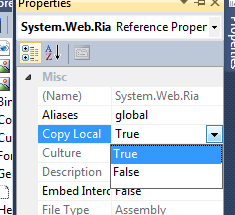
Change Copy Local Property image

The assemblies you would want to do this on (depending on what you have referenced) would be:

  • System.Web.Ria
  • System.Web.DomainServices.* (there 4 of them depending on what you are using)
  • Microsoft.RiaServices.Tools UPDATE: this assembly only required for design-time experiences

Once you do that, on your next compile, these assemblies would be copied to your bin directory and then the subsequent Publish action would also push those to your server.

The second option you have is to install the RIA Services server libraries on the server in the Global Assembly Cache (GAC).  You may have tried this already and run the RiaServices.msi installer on your server and received the warning that you are missing Visual Studio and all sorts of tools.

And then you walked away and went the bin-deploy route.  Well open up a command prompt and run this instead:

   1: msiexec /i RiaServices.msi SERVER=TRUE

And the server assemblies for RIA Services will be installed into the GAC for all to enjoy.  The advantage this has is that it becomes easier to service if you have one set of assemblies to update versus a few /bin deployed applications scurried all over the place.

HTTP Scheme violation and IIS host-headers

Now you run your application and you get this exception:

This collection already contains an address with scheme http.  There can be at most one address per scheme in this collection.
Parameter name: item

Now you’re starting to wish your development environment mirrored your deployment environment aren’t you? :-)  This lovely error message will leave you wondering what is going on for a while if you didn’t know what it meant.  I mean, it’s completely descriptive isn’t it?  Of course not.

If you are getting this, you are likely running Windows 2003 server (IIS6) and are using host-headers in IIS. 

NOTE: Host headers in IIS allow you to leverage a single IP address, but have separate web sites that respond to different hostname requests.  This information is usually provided in the IIS management console and is stored in the IIS metabase.

If this isn’t you, or you aren’t controlling your server, I’m guessing you are in a shared hosting environment.

NOTE: Full trust is required for RIA Services.  UPDATE: Partial trust is supported for .NET4/VS2010, full trust requirement is only for .NET 3.5/VS2008.

Either way, what you are seeing is a limitation of Windows Communication Foundation (WCF) under .NET 3.x.  There are a few things you can do here.

If you are running .NET 3.0 (well, you likely aren’t running RIA Services then are you) – but here’s some information on creating your own ServiceHostFactory…which isn’t really an option here.

If you are running .NET 3.5 (more likely), and can get to your web.config setting, you can add this setting:

   1: <system.serviceModel>
   2:     <serviceHostingEnvironment aspNetCompatibilityEnabled="true">
   3:         <baseAddressPrefixFilters>
   4:             <add prefix="http://some.url.here.that.matches.a.host.header"/>
   5:         </baseAddressPrefixFilters>
   6:     </serviceHostingEnvironment>
   7: </system.serviceModel>

Note that the prefix you are using must match the base URI of where your DomainService will be at as well as it must exist as a mapped host-header for the site.  More information available here.

if you are running .NET 4, you may not run into this issue, but there may be an optional opt-in configuration you will have to do when .NET 4 releases.

UPDATE: HttpModule for DomainService

Perhaps one thing that I assumed was that you’d be pushing the web app completely.  But what if you already have a web.config and you aren’t pushing that over there.  Well, pay attention to the web.config of a RIA Services created project.  You’ll see an HttpModule set up (this one is from VS2010, but will be similar, just version numbers different):

   1: <httpModules>
   2:     <add name="DomainServiceModule" type="System.Web.Ria.Services.DomainServiceHttpModule, 
   3:         System.Web.Ria, Version=4.0.0.0, Culture=neutral, PublicKeyToken=31BF3856AD364E35" />
   4: </httpModules>

If you don’t have this, then you might see some weirdness.  You see, for the default deployment, the service is handled through this module.  You may have noticed that there are no physical .SVC files in your web app.  If you look with Fiddler at your Silverlight/RIA Services application in action you’ll see something like /ClientBin/Your-Namespace-Here-Method.svc/binary.  This is actually interpreted by the module to map the request.

If you wanted to generate a physical file yourself, you can do that and the request would be processed there versus through the virtual SVC file generated.  You can read about this in Saurabh’s post.

Multiple Authentication Schemes

Okay, now you run it again and you get a message about it not supporting multiple authentication schemes and that you may have.  The message may look like this:

IIS specified authentication schemes 'IntegratedWindowsAuthentication, Anonymous', but the binding only supports specification of exactly one authentication scheme. Valid authentication schemes are Digest, Negotiate, NTLM, Basic, or Anonymous. Change the IIS settings so that only a single authentication scheme is used.

This can be a result of your <authentication> node in your ASPNET application being set to Windows, but your site being set to Anonymous in IIS.  For most, simply changing <authentication> node to mode=”Forms” will remove this error and allow you to continue.  For others, if your IIS configuration is set to use both Integrated Auth as well as Anonymous, you’ll want to uncheck one of them in the Directory Security setting for the site in IIS management console.

Install the Hotfix (XP, Vista, Windows 2003)

As noted on the RIA Services information page, if you are not running Windows 7 or Windows 2008 R2, you need to install a Hotfix.  Some people haven’t seen this note, so be sure if you fall in that category that you grab the appropriate hotfix for your architecture and run it.  UPDATE: This hotfix is only needed if you are using VS2008.

Essential Tools

So how can you troubleshoot all these things?  Some wondered where I was able to get the error messages, when their response errors in Silverlight were just showing NotFound.  I’ve said this again with regard to debugging services, especially cross-domain stuff, that if you aren’t using an HTTP diagnostic tool you are hurting your productivity in debugging.  I use Fiddler.  I used to use Web Development Helper a lot more, but have run into some problems with it registering in IE and Fiddler has finally got rid of all nuances that bothered me with it.  Some others have used Charles proxy which I’ve heard is really great, but requires Java if you don’t have it.  Any one of these tools can provide invaluable debugging information to help triage your issue.  Sometimes the HTTP response code isn’t the full story and the response body will help tremendously.

NOTE: If you are using Fiddler for http://localhost debugging, you may have seen some challenges.  In the URL, change to http://127.0.0.1./site – noting the trailing “.” after the IP address.  Example: http://127.0.0.1.:12345/MyApp – this will trigger Fiddler to monitor those requests as well.

For WCF binary encoding messages, be sure to download WCF Binary-encoded message inspector if you are using Fiddler…it’s awesome (hat tip to Dan Wahlin for the tip).

Summary

I suspect anyone running into these issues above is likely using Silverlight 3/VS2008 and deploying to an IIS6 instance.  Truly this is where the issues might manifest themselves.  When WCF RIA Services comes out of beta/ctp status and releases next year, the development story will be that of Silverlight 4 and .NET 4 on the server.  As noted above, these WCF issues (with host-headers) are solved with .NET 4 on the server, so this post will be useless when the bits release.

I hoped by posting this though, that some in the interim might find some better troubleshooting tips with regard to the shared hosting scenario mostly.  I personally ran into a few of these myself on my own dedicated server that uses host-headers (but is still full trust), so I thought others might benefit from the steps that I went through to get my RIA Services application deployed on a server.

Hope this helps.

Many have inquired if Silverlight Live Streaming had a replacement since the announcement of it being deprecated.  The SLS team blog pointed to Azure as a possible solution.  Since it doesn’t seem like anyone except James has really tried this, I decided to dust off my Azure account information and give it a try.

First, a note about SLS.  As I’ve said before I don’t think the offering was named very well from the start.  “Streaming” implies a specific technical connotation to most folks.  In fact, the media (or other files) hosted on SLS were never streamed as you might be thinking they were.  It was always a media file hosted on a content delivery network (CDN) and distributed delivered via basic progressive download…not streamed.  Now that we got that out of the way, let’s move on.

Setting up Azure

I’ll be honest.  I’m not sure how you go about getting an Azure token/invite at this point.  But you’ll need one.  Those who attended PDC08 already have access to one.  I believe MSDN subscribers will have access at some point but I don’t see it enabled on my account just yet either.  Bottom line is you’ll need an invitation token.  I cannot help you in this regard, so don’t even ask…I wish I could, but I can’t.

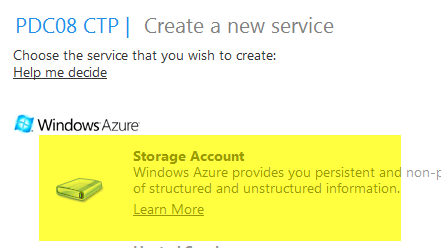
Once you have an Azure account, you want to create a Windows Azure Storage instance and give it a name.  I recommend not using special characters in the name as some of the tools I’m explaining below had problems with that.  I gave mine a simple name “timheuerblob1” and let it provision.

Azure Storage Account creation

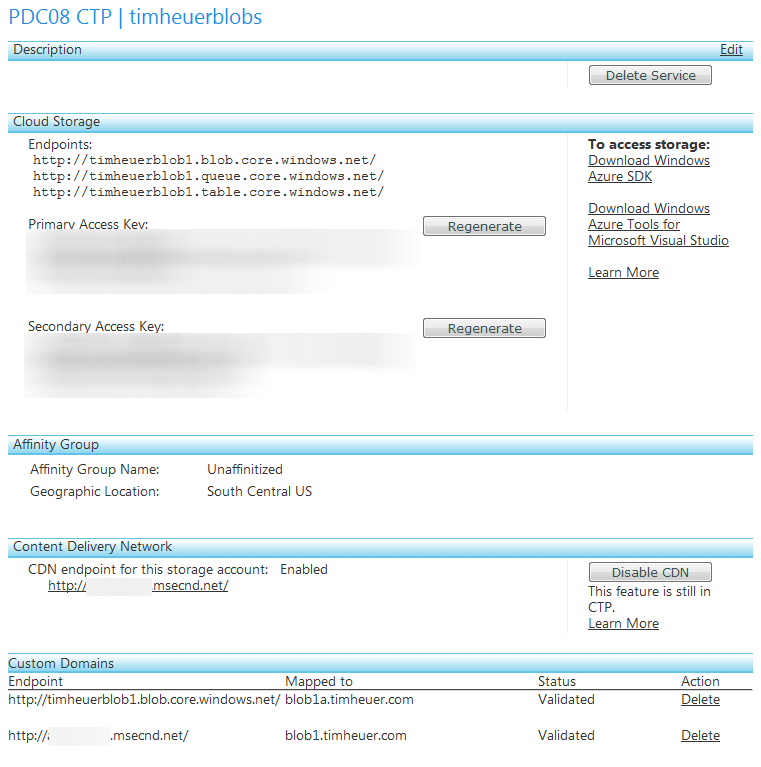
Once you have that you’ll see a bunch of configuration screen details:

Azure configuration details

I’d recommend doing the following tasks first before you proceed.  In the bottom you’ll see an option to enable CDN.  For this purpose of hosting files/storage I recommend putting it on.  Additionally, this provisioning of CDN can take some time so do that first.  The next step is to configure your custom domain names (if you’d like) to map to the CDN and/or blob storage endpoints.  This is a simple/fast process but requires you to understand DNS entries and have the ability to modify your domain’s DNS information.  You can find step-by-step instructions at Steve Marx’s blog post here.  Without enabling this CDN feature, you really aren’t going to get the same level of scale as you did with SLS.

The key things you will need for the next part are the Primary Access Key and the Endpoints.  Make note of them.

Tools to upload content

Windows Azure blob storage is exactly what it says: storage.  Right now there aren’t any provided tools from Windows Azure to really manage the contents of the storage blob containers (unless I’m mistaken, and if so, please correct me).  There is an API for you to get access to and publish content, but if you’re wanting to use it like an SLS replacement you’re likely hoping for an easy tool to upload/manage the contents.

Enter two tools: Azure Storage Explorer and Cloud Storage Studio.  Both of these are Windows clients (WPF incidentally) and are installed on your machine.  Cloud Storage Studio actually has an online version if you wanted to use that offering.  I did not try that tool as I’m okay using a client tool.

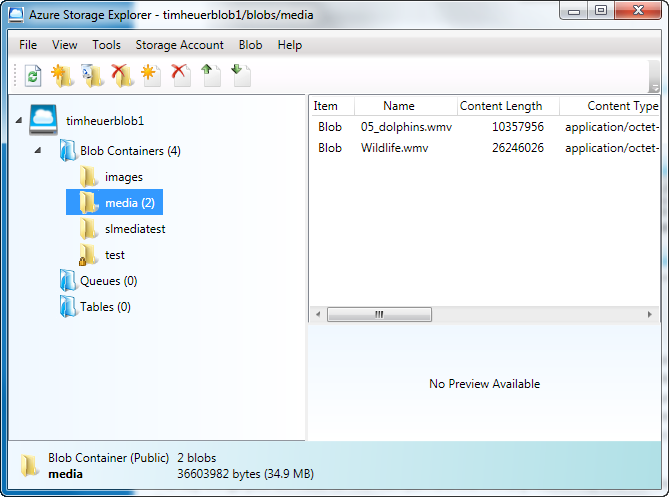
Azure Storage Explorer is a CDDL licensed CodePlex project (which actually has no source code checked in at this point) provided by Neudesic – a Microsoft partner.  It is a simple UI that requires you to input your blob storage name, access key and endpoints in the Storage Settings dialog.  I initially had problems with this as my name had a special character in it.  I deleted my initial (and old) instance and recreated a new one in Azure and didn’t have problems after that.

Azure Storage Explorer screenshot

It was pretty simple to use and understand.  Create a container, upload stuff into it.  Done. 

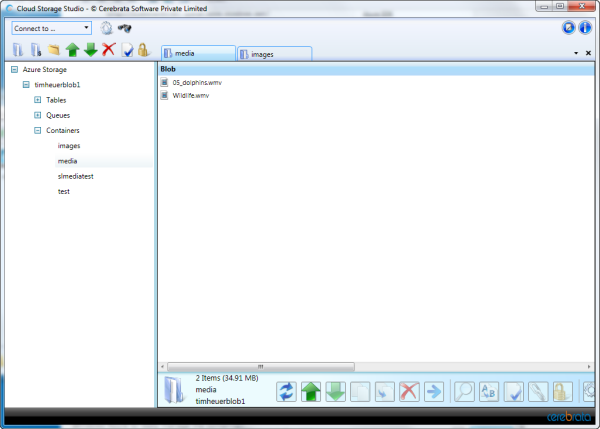
Cloud Storage Studio is a commercial offering and unclear if it is going to be free always or just in CTP mode right now.  I couldn’t find information that jumped out at me on their site to let me know. 

Cloud Storage Studio screenshot

Cloud Storage Studio wouldn’t let me resize the window and that was frustrating.  Other than that it operated as expected, same thing – blob container select and upload.

While both tools were providing me basic blob container and upload capabilities, I felt the upload was slow (comparing to my Amazon S3 experience in creating a tool for content management).  I’m not sure if that was the app, Azure, or the nature of the API.  Also, neither tool seemed to enable me to set the content-type of the contents of the blob I was uploading.  I see this to be a problem for some.  The default of application/octet-stream isn’t going to work for all scenarios (for example I cannot use it to host XAPs and embed them because I would need to be able to set the content-type header).

Side note: Be sure to check out James Clarke’s CodePlex work on a Windows PowerShell script that will do encoding via Expression Encoder and then trigger a publishing plugin – such as one that will automatically upload to an Azure blob storage account.

Other than that, they served the need of filling the gap for a UI tool that already worked out the API stuff.

UPDATE: CloudBerry for Azure

I cannot believe I didn’t know about this one, since CloudBerry is what I use for my Amazon S3 storage and is AWESOME.  I was directed to CloudBerry for Azure Blob Storage (oddly by their competitor above) and I downloaded it immediately. 

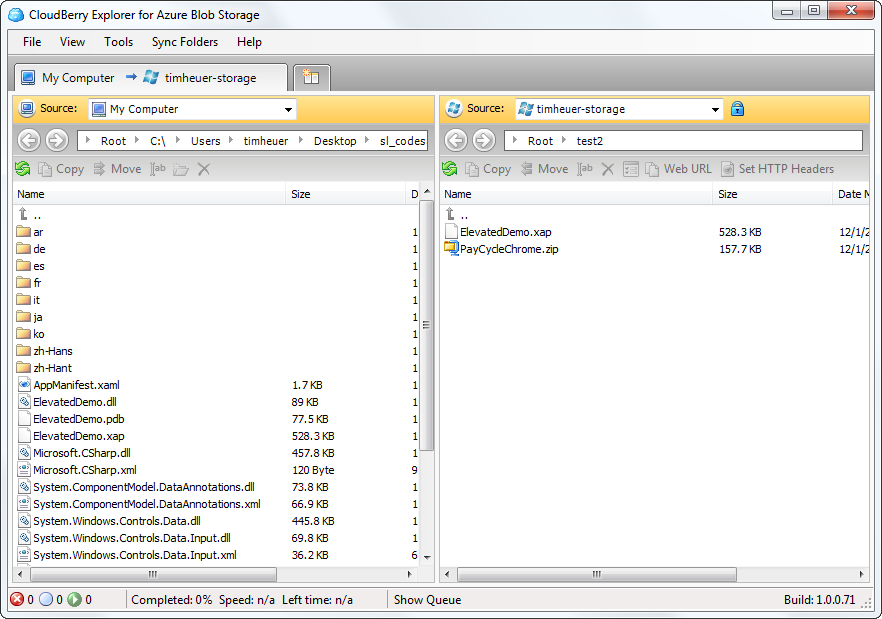
CloudBerry Azure Blob Storage explorer

It met every expectation I had and has been the fastest client.  To me, the other clients must meet this bar of functionality *for blob storage interaction* to be considered for me to use.  The one thing it doesn’t have is custom CDN URI generation in its “WebURL” functionality – but I suspect this might be an Azure API limitation (I’m not familiar with the Azure API).

UPDATE 2: Cloud Storage Studio

Be sure to read the comments below from the team at Cloud Storage Studio.  They were kind enough to reach out to me to clarify some things above and listen to my feedback.  They are ACTIVELY looking to improve their product and provide value-add to Azure users/developers.  I sincerely appreciate when people reach out to their customers for feedback.  It’s been a great dialog with them helping them understand how I would use Azure and what my tools needs might be.

My Silverlight media test

Using my new found tools and some sample media files I uploaded a 720p high-def 30 second clip (30MB) to my blob storage account.  I then used put together a page with a simple player and pointed it to the Azure-hosted media.  I first pointed the media player to the basic blob endpoint.  The result of which is here: Non-CDN Hosted Media Playback.

Users who tested it with me said that the video buffered quite a bit and in remote areas (Australia) it took about 1.5 minutes to download the video.  This is again because this is still not streaming but just progressive download.

I then changed the media URL to the CDN version (after waiting 24 hours for propagation, etc. just to be sure) and have the CDN Hosted Media Playback.

I have to be honest and say that the CDN versions seemed to be better at consistent playback after the initial buffer of video (i.e., I received no more future buffering).  I’d be curious as to what other international people see on the CDN version as it would give a better view of how well the CDN delivers content globally.

Summary

I’m not sure if this will be a solution for everyone, but if you are looking for a Microsoft offering for cloud/CDN storage, give Azure a try.  NOTE: It is not a free service once it goes into production!  In fact, most CDN/cloud storage solutions you will find are not.  I’m currently using Amazon S3 for mine and have been for a long while.  It, too, is not free.  (Here’s the Amazon S3 CloudFront version of same media file.)  Again, here are the links to the three different video hosted locations/tests I did:

Either way, now that SLS is gone as a CDN/free hosted service where many were putting their media, you’ll have to look for another option.  Azure is one of those options.  Does it provide an automatic skin for a media player?  No.  You’ll have to do that yourself.  Is it streaming?  No, but neither was SLS.  Is there streaming/smooth streaming on the horizon?  I don’t know…but it would be cool if there was!

Hope this helps.

At PDC09, Glenn Block delivered a great presentation on building extensible RIAs using the Managed Extensibility Framework (FT24 from the PDC09 sessions).  Glenn is one of the PMs and face-man for MEF.  He’s been traveling all around singing the praises of MEF for .NET developers and gathering feedback along the way.  You may remember Glenn from his work with the Prism framework as well.  I snagged Glenn at the end of PDC to grab a sound-byte:

Glenn has already started a series on MEF in Silverlight starting with the basics and then continuing along deeper.

These two initial posts are helpful to anyone who hasn’t started at all with MEF and understanding the value of implementing an extensible Silverlight application.  I know Glenn has more up his sleeves and I’ve been thinking on ideas with him as well (trying to learn MEF myself) so be sure to stay tuned for more excellent posts by Glenn on MEF and Silverlight!