Advertisement

Getting started with Silverlight: Part 7 – Out-of-browser experiences

This is part 7 in a series on getting started with Silverlight.  To view the index to the series click hereYou can download the completed project files for this sample application in C# or Visual Basic.

In our final stage of this getting started series, we are going to make our application available for installation outside of the browser.  The steps are much simpler than you think.

Create the manifest

Using Visual Studio, right-click on the Silverlight application’s project and choose properties.  You’ll see a dialog box come up – notice the checkbox about Out-of-browser settings:
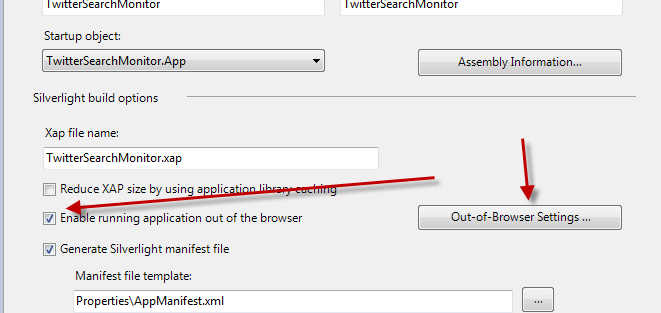
Application properties

When you click that you’ll be greeted with options to complete:
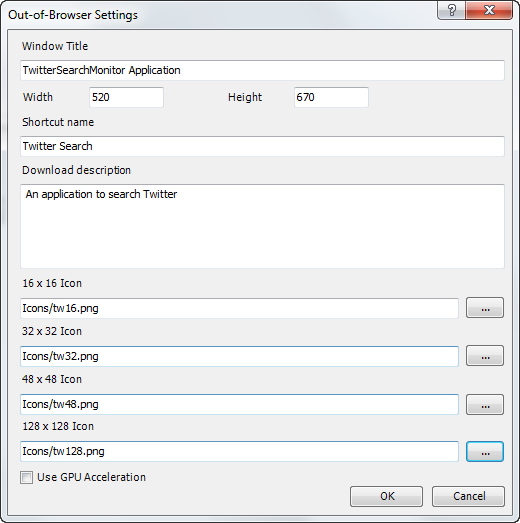
Out-of-browser settings dialog

These settings are important to provide visual information about your application when installed and running out of the browser.

  • Window Title – what is displayed in the window chrome for the app
  • Width/Height – the starting width and height of your application when launched
  • Shortcut name – the name for the desktop/start menu shortcut
  • Download description – a description of the application
  • Icons – must be PNG and must be included in the project marked as Content

Once you have all those in place your app is enabled for out-of-browser capabilities.  Let’s add an install button for your users in the navigation area in MainPage.xaml in the StackPanel called LinksStackPanel, add this XAML:

   1: <Rectangle x:Name="Divider3" Style="{StaticResource DividerStyle}"/>
   2: <HyperlinkButton x:Name="InstallLink" Style="{StaticResource LinkStyle}" 
   3:                  Content="install" Click="InstallOffline"/>

Now in MainPage.xaml.cs write the function for InstallOffline:

   1: private void InstallOffline(object sender, RoutedEventArgs e)
   2: {
   3:     if (Application.Current.Install())
   4:     {
   5:         InstallLink.Visibility = Visibility.Collapsed;
   6:     }
   7: }

You can see that after we check for a successful install, we hide the install button as it isn’t needed anymore.  What we need to do though is make that more dynamic in that it automatically knows to do that.  Additionally we don’t want the install button to show if the application is launched out-of-browser to begin with.  Luckily we have an API with a few properties that will help us out: InstallState and IsRunningOutOfBrowser.  Let’s make use of both of these.

Detecting InstallState and IsRunningOutOfBrowser

In the MainPage.xaml.cs file, we’re going to add an event handler to detect the change of our installation state of our application as well as a loaded event handler:

   1: public MainPage()
   2: {
   3:     InitializeComponent();
   4:     Loaded += new RoutedEventHandler(MainPage_Loaded);
   5:     Application.Current.InstallStateChanged += new EventHandler(OnInstallStateChanged);
   6: }

In that method we’ll check the various states to determine if our InstallLink should be visible or not (as well as the last divider):

   1: void OnInstallStateChanged(object sender, EventArgs e)
   2: {
   3:     switch (Application.Current.InstallState)
   4:     {
   5:         case InstallState.InstallFailed:
   6:             break;
   7:         case InstallState.Installed:
   8:             ToggleInstallLinks(true);
   9:             break;
  10:         case InstallState.Installing:
  11:             break;
  12:         case InstallState.NotInstalled:
  13:             ToggleInstallLinks(false);
  14:             break;
  15:         default:
  16:             break;
  17:     }
  18: }
  19:  
  20: void ToggleInstallLinks(bool hidden)
  21: {
  22:     InstallLink.Visibility = hidden ? Visibility.Collapsed: Visibility.Visible;
  23:     Link3.Visibility = hidden ? Visibility.Collapsed : Visibility.Visible;
  24: }

Now in the Loaded event handler we’ll check to see if the application is running out-of-browser or not:

   1: void MainPage_Loaded(object sender, RoutedEventArgs e)
   2: {
   3:     if (App.Current.IsRunningOutOfBrowser)
   4:     {
   5:         ToggleInstallLinks(true);
   6:     }
   7:     else
   8:     {
   9:         if (App.Current.InstallState == InstallState.Installed)
  10:         {
  11:             ToggleInstallLinks(true);
  12:         }
  13:     }
  14: }

Using these two APIs we can now automatically change our UI to hide functions not needed.

Detecting network changes

If our application doesn’t have network access, we shouldn’t allow the search to run because it may not have the capability of finding the Twitter search API.  There is an additional API for NetworkInterface that we can use to detect this.  We’ll do this in our Search.xaml.cs page by first adding an event handler in the constructor after our Loaded event handler line:

   1: NetworkChange.NetworkAddressChanged += new NetworkAddressChangedEventHandler(OnNetworkChanged);

This raises an event when the network status has changed.  Now in the OnNetworkChanged event handler we’ll check to see if the network is available and, if it isn’t, disable searching capabilities until it is:

   1: void OnNetworkChanged(object sender, EventArgs e)
   2: {
   3:     if (!NetworkInterface.GetIsNetworkAvailable())
   4:     {
   5:         // network may not be available, halt searching
   6:         SearchButton.IsEnabled = false;
   7:         SearchButton.Content = "DISCONNECTED";
   8:         _timer.Stop();
   9:     }
  10:     else
  11:     {
  12:         SearchButton.Content = "SEARCH";
  13:         SearchButton.IsEnabled = true;
  14:         _timer.Start();
  15:     }
  16: }

This is only an example of course, and you could provide other UI hints such as status indicators, etc. but for our application this should work now.

NOTE (Here be dragons): Simply checking for GetIsNetworkAvailable doesn’t guarantee in all circumstances that the Internet is not available.  Due to various ways corporations configure proxy servers and local IP addressing it is always good practice to have a fallback mechanism if you need to verify WAN Internet access.  This can be done by simply doing a WebClient request for a file on the web server – if the request succeeds you have Internet access, otherwise you may not.

You can find out more information about Out-of-browser experiences here:

Out of browser updates

You may be wondering how to trigger updates to an application if it was installed on to the machine.  There is an API that a developer can use called CheckAndDownloadUpdateAsync which triggers the update model.  The update model is outlined here.  Even though that article has a different API, the model of updating is the same *after* that method above is called.

Summary

Now we’ve taken our application from a blank slate to a working application with data and that can be installed out of the browser.  I hope this has been a helpful exercise to walk through.  Download the code to be sure to play around with it and learn.  Here are some other helpful resources for you:

Hopefully this will get you started writing Silverlight applications!


This work is licensed under a Creative Commons Attribution By license.

  1. 10/23/2009 3:44 PM | # re: Getting started with Silverlight: Part 7 – Out-of-browser experiences
    Minor point - In the OnInstallStateChanged method, I think "Link3.Visibility = ..." should be "Divider3.Visibility = ...".
  2. 10/23/2009 3:47 PM | # re: Getting started with Silverlight: Part 7 – Out-of-browser experiences
    Cory -- sneaky catch :-) -- the code download is correct :-)
  3. 10/23/2009 4:44 PM | # re: Getting started with Silverlight: Part 7 – Out-of-browser experiences
    Very nice tutorial. Perfect for a Windows Forms developer trying to understand the new technologies. Thank you for your great work!
  4. Gravatar
    10/23/2009 11:59 PM | # re: Getting started with Silverlight: Part 7 – Out-of-browser experiences
    I was following this series of Silverlight walk through and really enjoyed it. But I was wondering about the size of xap file generated by this small demo though. It's 468KB in my machine, isn't it an over kill for a small tool like this? Is there any ways to reduce the size of resulting xap file?
  5. 10/24/2009 11:22 AM | # re: Getting started with Silverlight: Part 7 – Out-of-browser experiences
    Raj -- yes, as I point out in Step 3 (near the bottom in my 'here be dragons' note - timheuer.com/.../...ted-part-3-accessing-data.aspx, I'm using the Syndication library. While extremely convenient, it is also one of the heaviest libraries (as it brings Serialization with it as well). I purposely kept it in here to bring awareness for it. In reality though, you could use that or for simple reading syndicated content a simple LINQ query would be lighterweight in dependencies, but not strongly typed.
  6. 10/29/2009 1:09 PM | # re: Getting started with Silverlight: Part 7 – Out-of-browser experiences
    Tim.. Amazing.
    How do u know all this?
    Thank you for new knowledge
  7. 11/17/2009 2:27 PM | # re: Getting started with Silverlight: Part 7 – Out-of-browser experiences
    Okay, I got this Out of Browser thing working on my app, which is pretty cool. But I really want this OOB "application" to be able to remember its window size and position from one run to the next, just like real apps do. But it's running in a sandbox and can't reach out to the window system. Is there any hope of doing this?
  8. 11/17/2009 4:57 PM | # re: Getting started with Silverlight: Part 7 – Out-of-browser experiences
    Bill - there will be hope :-)
  9. 11/17/2009 5:55 PM | # re: Getting started with Silverlight: Part 7 – Out-of-browser experiences
    Hmm, an upbeat reply with a discouraging future tense. I guess that means I'm right, I can't do it now, which is a big strike against using Silverlight for a project for which I'm trying to choose an implementation framework right now. Any idea how distant the future is in which the hope will appear?
  10. 11/17/2009 6:04 PM | # re: Getting started with Silverlight: Part 7 – Out-of-browser experiences
    Bill -- that is correct that you can't control *restart* size. You can control the initial startup size, but if the user resizes it, you can't start with their resized settings.
  11. 11/20/2009 11:17 AM | # re: Getting started with Silverlight: Part 7 – Out-of-browser experiences
    If the application is in out of browser mode, how can I launch a new window with one of the applications own pages. For example, I have a Silverlight application that will open a new browser window for certain pages. I would like when the application goes into out of browser mode to launch pages in a new window not a new browser, since the application itself is now installed on the client device. Any help on this would be very helpful.

    Thanks,

    Alex
  12. 11/25/2009 5:04 AM | # re: Getting started with Silverlight: Part 7 – Out-of-browser experiences
    Just a query - how do I remove the out-of-browser application cleanly from my system? I've made some changes to the app, and I want to 'install' it again - but because it's already installed, I obviously don't see the install button.
    Yes I can change the code to force the install option to be there, but I'd like to do it properly (for want of a better expression).
  13. 11/25/2009 8:25 AM | # re: Getting started with Silverlight: Part 7 – Out-of-browser experiences
    JonH -- right-click on the application and choose "Remove this application" -- in Silverlight 4 this is improved by adding an entry to the add/remove programs control panel area for Windows. Additionally, you pointed out something I should have done in this step -- check for updates. This is something easy to do and should be done by any application that may be installed in OOB mode. Frankly, I neglected doing that here by accident and I shouldn't have.
  14. 11/26/2009 6:14 AM | # re: Getting started with Silverlight: Part 7 – Out-of-browser experiences
    Thanks - great introductory tutorial to Silverlight (and XAML as a whole for me :) )
  15. 12/11/2009 7:16 PM | # re: Getting started with Silverlight: Part 7 – Out-of-browser experiences
    Great. Thanks Tim. What I wanted and a lot more to get started with Silverlight.
  16. 12/13/2009 2:41 PM | # re: Getting started with Silverlight: Part 7 – Out-of-browser experiences
    Thanks Tim, and nice work. You have a great teaching style.
  17. 12/19/2009 12:53 AM | # re: Getting started with Silverlight: Part 7 – Out-of-browser experiences
    Thanks for this series of posts, Tim. It's been a great boost to my Silverlight knowledge - a few things tripped me up along the way but I think solving them has also helped build on what I know. Have a great Christmas.
  18. 12/19/2009 12:36 PM | # re: Getting started with Silverlight: Part 7 – Out-of-browser experiences
    Great set of tutorials I made enough mistakes to lean some more about silverlight
    keep them coming if you can this end to end stuff has got to be the best way to learn something and get good at it you guys on the silverlight team are really going a number on the web it will be forever changed
    Thanks again merry Xmas
  19. 12/22/2009 1:10 AM | # re: Getting started with Silverlight: Part 7 – Out-of-browser experiences
    Great tutorial! Thanks!
  20. 12/31/2009 12:05 PM | # re: Getting started with Silverlight: Part 7 – Out-of-browser experiences
    Opening my eyes to a whole new world. Before seeing this demo I had a strongly disliked XAML. But this example opened my eyes... So glad you posted this. I ams excited to built my first silverlight app on my own! Keep the knowledge flowing!
  21. Gravatar
    1/4/2010 12:24 AM | # re: Getting started with Silverlight: Part 7 – Out-of-browser experiences
    Thanks Tim for a great series... those are very helpful, and really getting started :)
  22. 1/11/2010 2:17 AM | # re: Getting started with Silverlight: Part 7 – Out-of-browser experiences
    Thanks a lot, i am able start of doing few pages after these tutorials.

    Could not play around with blend much. But, surely it is not intutive and user friendly as Visual studio. Is microsoft going to enable few of the blend capabilities in VS 2010?

    Manju
  23. 1/12/2010 7:54 PM | # re: Getting started with Silverlight: Part 7 – Out-of-browser experiences
    Manju - VS2010 has an editable design surface, databinding help support, etc. -- but will not have the full featured styling/animation that Blend has.
  24. 2/16/2010 1:53 PM | # re: Getting started with Silverlight: Part 7 – Out-of-browser experiences
    Thank you for the tut, and all the commenters with fixes and solutions for small problems.

    I bumped into a strange things though after part 3.

    Being able to debug stopped completely. Never paused at my breakpoints.
    Another thing was caching problems I think. I had to first run the TwitterSearchMonitor project as "startup project" and then change to TwitteSearchMonitor.web as the startup project and run again. Then the code "worked". Everytime i wanted to compile I had to do this or the code modifications did not show.

    I use Chrome 4 as default browser, would that matter?

    I can't find any "debug/release" mode for the project as with normal ASP.NET things so I doubt I've "Turned off" debugging?

    Any ideas on this?
  25. 3/12/2010 2:16 AM | # re: Getting started with Silverlight: Part 7 – Out-of-browser experiences
    thank you very much about tut. it was very help full new learning guys (like me).
    i hope some more advance topics tut in future.

    Thanks,
    B.Naganandu

 
Please add 5 and 1 and type the answer here:
First time here? You are looking at the most recent posts. You may also want to check out older archives. Please leave a comment, ask a question and consider subscribing to the latest posts via RSS or email. Thank you for visiting! (hide this)