Getting started with Silverlight: Part 7 – Out-of-browser experiences
This is part 7 in a series on getting started with Silverlight. To view the index to the series click here. You can download the completed project files for this sample application in C# or Visual Basic.
In our final stage of this getting started series, we are going to make our application available for installation outside of the browser. The steps are much simpler than you think.
Create the manifest
Using Visual Studio, right-click on the Silverlight application’s project and choose properties. You’ll see a dialog box come up – notice the checkbox about Out-of-browser settings:
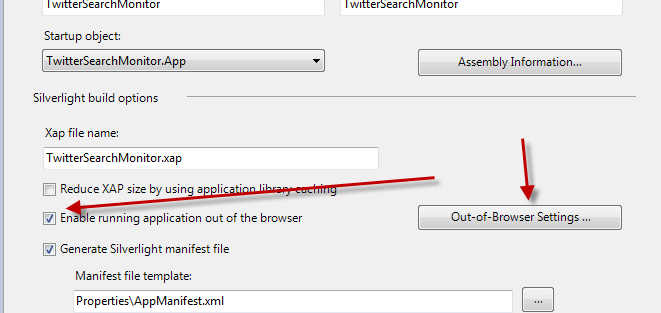
When you click that you’ll be greeted with options to complete:
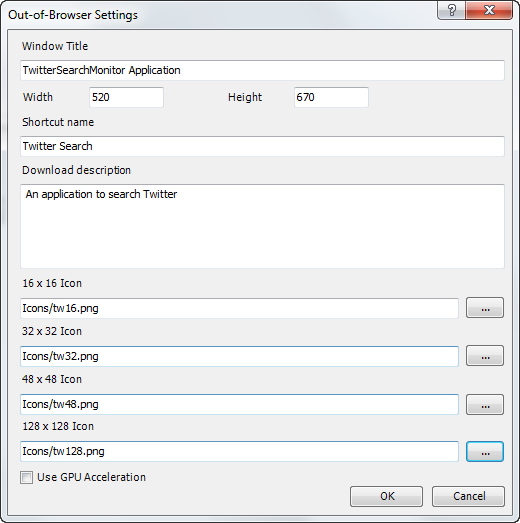
These settings are important to provide visual information about your application when installed and running out of the browser.
- Window Title – what is displayed in the window chrome for the app
- Width/Height – the starting width and height of your application when launched
- Shortcut name – the name for the desktop/start menu shortcut
- Download description – a description of the application
- Icons – must be PNG and must be included in the project marked as Content
Once you have all those in place your app is enabled for out-of-browser capabilities. Let’s add an install button for your users in the navigation area in MainPage.xaml in the StackPanel called LinksStackPanel, add this XAML:
1: <Rectangle x:Name="Divider3" Style="{StaticResource DividerStyle}"/>
<pre style="border-bottom-style: none; text-align: left; padding-bottom: 0px; line-height: 12pt; border-right-style: none; background-color: #f4f4f4; margin: 0em; padding-left: 0px; width: 100%; padding-right: 0px; font-family: 'Courier New', courier, monospace; direction: ltr; border-top-style: none; color: black; font-size: 8pt; border-left-style: none; overflow: visible; padding-top: 0px"><span style="color: #606060" id="lnum2"> 2:</span> <span style="color: #0000ff"><</span><span style="color: #800000">HyperlinkButton</span> <span style="color: #ff0000">x:Name</span><span style="color: #0000ff">="InstallLink"</span> <span style="color: #ff0000">Style</span><span style="color: #0000ff">="{StaticResource LinkStyle}"</span> </pre><pre style="border-bottom-style: none; text-align: left; padding-bottom: 0px; line-height: 12pt; border-right-style: none; background-color: #f4f4f4; margin: 0em; padding-left: 0px; width: 100%; padding-right: 0px; font-family: 'Courier New', courier, monospace; direction: ltr; border-top-style: none; color: black; font-size: 8pt; border-left-style: none; overflow: visible; padding-top: 0px"><span style="color: #606060" id="lnum3"> 3:</span> <span style="color: #ff0000">Content</span><span style="color: #0000ff">="install"</span> <span style="color: #ff0000">Click</span><span style="color: #0000ff">="InstallOffline"</span><span style="color: #0000ff">/></span></pre>Now in MainPage.xaml.cs write the function for InstallOffline:
1: private void InstallOffline(object sender, RoutedEventArgs e)
<pre style="border-bottom-style: none; text-align: left; padding-bottom: 0px; line-height: 12pt; border-right-style: none; background-color: #f4f4f4; margin: 0em; padding-left: 0px; width: 100%; padding-right: 0px; font-family: 'Courier New', courier, monospace; direction: ltr; border-top-style: none; color: black; font-size: 8pt; border-left-style: none; overflow: visible; padding-top: 0px"><span style="color: #606060" id="lnum2"> 2:</span> {</pre><pre style="border-bottom-style: none; text-align: left; padding-bottom: 0px; line-height: 12pt; border-right-style: none; background-color: #f4f4f4; margin: 0em; padding-left: 0px; width: 100%; padding-right: 0px; font-family: 'Courier New', courier, monospace; direction: ltr; border-top-style: none; color: black; font-size: 8pt; border-left-style: none; overflow: visible; padding-top: 0px"><span style="color: #606060" id="lnum3"> 3:</span> <span style="color: #0000ff">if</span> (Application.Current.Install())</pre><pre style="border-bottom-style: none; text-align: left; padding-bottom: 0px; line-height: 12pt; border-right-style: none; background-color: #f4f4f4; margin: 0em; padding-left: 0px; width: 100%; padding-right: 0px; font-family: 'Courier New', courier, monospace; direction: ltr; border-top-style: none; color: black; font-size: 8pt; border-left-style: none; overflow: visible; padding-top: 0px"><span style="color: #606060" id="lnum4"> 4:</span> {</pre><pre style="border-bottom-style: none; text-align: left; padding-bottom: 0px; line-height: 12pt; border-right-style: none; background-color: #f4f4f4; margin: 0em; padding-left: 0px; width: 100%; padding-right: 0px; font-family: 'Courier New', courier, monospace; direction: ltr; border-top-style: none; color: black; font-size: 8pt; border-left-style: none; overflow: visible; padding-top: 0px"><span style="color: #606060" id="lnum5"> 5:</span> InstallLink.Visibility = Visibility.Collapsed;</pre><pre style="border-bottom-style: none; text-align: left; padding-bottom: 0px; line-height: 12pt; border-right-style: none; background-color: #f4f4f4; margin: 0em; padding-left: 0px; width: 100%; padding-right: 0px; font-family: 'Courier New', courier, monospace; direction: ltr; border-top-style: none; color: black; font-size: 8pt; border-left-style: none; overflow: visible; padding-top: 0px"><span style="color: #606060" id="lnum6"> 6:</span> }</pre><pre style="border-bottom-style: none; text-align: left; padding-bottom: 0px; line-height: 12pt; border-right-style: none; background-color: #f4f4f4; margin: 0em; padding-left: 0px; width: 100%; padding-right: 0px; font-family: 'Courier New', courier, monospace; direction: ltr; border-top-style: none; color: black; font-size: 8pt; border-left-style: none; overflow: visible; padding-top: 0px"><span style="color: #606060" id="lnum7"> 7:</span> }</pre>You can see that after we check for a successful install, we hide the install button as it isn’t needed anymore. What we need to do though is make that more dynamic in that it automatically knows to do that. Additionally we don’t want the install button to show if the application is launched out-of-browser to begin with. Luckily we have an API with a few properties that will help us out: InstallState and IsRunningOutOfBrowser. Let’s make use of both of these.
Detecting InstallState and IsRunningOutOfBrowser
In the MainPage.xaml.cs file, we’re going to add an event handler to detect the change of our installation state of our application as well as a loaded event handler:
1: public MainPage()
<pre style="border-bottom-style: none; text-align: left; padding-bottom: 0px; line-height: 12pt; border-right-style: none; background-color: #f4f4f4; margin: 0em; padding-left: 0px; width: 100%; padding-right: 0px; font-family: 'Courier New', courier, monospace; direction: ltr; border-top-style: none; color: black; font-size: 8pt; border-left-style: none; overflow: visible; padding-top: 0px"><span style="color: #606060" id="lnum2"> 2:</span> {</pre><pre style="border-bottom-style: none; text-align: left; padding-bottom: 0px; line-height: 12pt; border-right-style: none; background-color: #f4f4f4; margin: 0em; padding-left: 0px; width: 100%; padding-right: 0px; font-family: 'Courier New', courier, monospace; direction: ltr; border-top-style: none; color: black; font-size: 8pt; border-left-style: none; overflow: visible; padding-top: 0px"><span style="color: #606060" id="lnum3"> 3:</span> InitializeComponent();</pre><pre style="border-bottom-style: none; text-align: left; padding-bottom: 0px; line-height: 12pt; border-right-style: none; background-color: #f4f4f4; margin: 0em; padding-left: 0px; width: 100%; padding-right: 0px; font-family: 'Courier New', courier, monospace; direction: ltr; border-top-style: none; color: black; font-size: 8pt; border-left-style: none; overflow: visible; padding-top: 0px"><span style="color: #606060" id="lnum4"> 4:</span> Loaded += <span style="color: #0000ff">new</span> RoutedEventHandler(MainPage_Loaded);</pre><pre style="border-bottom-style: none; text-align: left; padding-bottom: 0px; line-height: 12pt; border-right-style: none; background-color: #f4f4f4; margin: 0em; padding-left: 0px; width: 100%; padding-right: 0px; font-family: 'Courier New', courier, monospace; direction: ltr; border-top-style: none; color: black; font-size: 8pt; border-left-style: none; overflow: visible; padding-top: 0px"><span style="color: #606060" id="lnum5"> 5:</span> Application.Current.InstallStateChanged += <span style="color: #0000ff">new</span> EventHandler(OnInstallStateChanged);</pre><pre style="border-bottom-style: none; text-align: left; padding-bottom: 0px; line-height: 12pt; border-right-style: none; background-color: #f4f4f4; margin: 0em; padding-left: 0px; width: 100%; padding-right: 0px; font-family: 'Courier New', courier, monospace; direction: ltr; border-top-style: none; color: black; font-size: 8pt; border-left-style: none; overflow: visible; padding-top: 0px"><span style="color: #606060" id="lnum6"> 6:</span> }</pre>In that method we’ll check the various states to determine if our InstallLink should be visible or not (as well as the last divider):
1: void OnInstallStateChanged(object sender, EventArgs e)
<pre style="border-bottom-style: none; text-align: left; padding-bottom: 0px; line-height: 12pt; border-right-style: none; background-color: #f4f4f4; margin: 0em; padding-left: 0px; width: 100%; padding-right: 0px; font-family: 'Courier New', courier, monospace; direction: ltr; border-top-style: none; color: black; font-size: 8pt; border-left-style: none; overflow: visible; padding-top: 0px"><span style="color: #606060" id="lnum2"> 2:</span> {</pre><pre style="border-bottom-style: none; text-align: left; padding-bottom: 0px; line-height: 12pt; border-right-style: none; background-color: #f4f4f4; margin: 0em; padding-left: 0px; width: 100%; padding-right: 0px; font-family: 'Courier New', courier, monospace; direction: ltr; border-top-style: none; color: black; font-size: 8pt; border-left-style: none; overflow: visible; padding-top: 0px"><span style="color: #606060" id="lnum3"> 3:</span> <span style="color: #0000ff">switch</span> (Application.Current.InstallState)</pre><pre style="border-bottom-style: none; text-align: left; padding-bottom: 0px; line-height: 12pt; border-right-style: none; background-color: #f4f4f4; margin: 0em; padding-left: 0px; width: 100%; padding-right: 0px; font-family: 'Courier New', courier, monospace; direction: ltr; border-top-style: none; color: black; font-size: 8pt; border-left-style: none; overflow: visible; padding-top: 0px"><span style="color: #606060" id="lnum4"> 4:</span> {</pre><pre style="border-bottom-style: none; text-align: left; padding-bottom: 0px; line-height: 12pt; border-right-style: none; background-color: #f4f4f4; margin: 0em; padding-left: 0px; width: 100%; padding-right: 0px; font-family: 'Courier New', courier, monospace; direction: ltr; border-top-style: none; color: black; font-size: 8pt; border-left-style: none; overflow: visible; padding-top: 0px"><span style="color: #606060" id="lnum5"> 5:</span> <span style="color: #0000ff">case</span> InstallState.InstallFailed:</pre><pre style="border-bottom-style: none; text-align: left; padding-bottom: 0px; line-height: 12pt; border-right-style: none; background-color: #f4f4f4; margin: 0em; padding-left: 0px; width: 100%; padding-right: 0px; font-family: 'Courier New', courier, monospace; direction: ltr; border-top-style: none; color: black; font-size: 8pt; border-left-style: none; overflow: visible; padding-top: 0px"><span style="color: #606060" id="lnum6"> 6:</span> <span style="color: #0000ff">break</span>;</pre><pre style="border-bottom-style: none; text-align: left; padding-bottom: 0px; line-height: 12pt; border-right-style: none; background-color: #f4f4f4; margin: 0em; padding-left: 0px; width: 100%; padding-right: 0px; font-family: 'Courier New', courier, monospace; direction: ltr; border-top-style: none; color: black; font-size: 8pt; border-left-style: none; overflow: visible; padding-top: 0px"><span style="color: #606060" id="lnum7"> 7:</span> <span style="color: #0000ff">case</span> InstallState.Installed:</pre><pre style="border-bottom-style: none; text-align: left; padding-bottom: 0px; line-height: 12pt; border-right-style: none; background-color: #f4f4f4; margin: 0em; padding-left: 0px; width: 100%; padding-right: 0px; font-family: 'Courier New', courier, monospace; direction: ltr; border-top-style: none; color: black; font-size: 8pt; border-left-style: none; overflow: visible; padding-top: 0px"><span style="color: #606060" id="lnum8"> 8:</span> ToggleInstallLinks(<span style="color: #0000ff">true</span>);</pre><pre style="border-bottom-style: none; text-align: left; padding-bottom: 0px; line-height: 12pt; border-right-style: none; background-color: #f4f4f4; margin: 0em; padding-left: 0px; width: 100%; padding-right: 0px; font-family: 'Courier New', courier, monospace; direction: ltr; border-top-style: none; color: black; font-size: 8pt; border-left-style: none; overflow: visible; padding-top: 0px"><span style="color: #606060" id="lnum9"> 9:</span> <span style="color: #0000ff">break</span>;</pre><pre style="border-bottom-style: none; text-align: left; padding-bottom: 0px; line-height: 12pt; border-right-style: none; background-color: #f4f4f4; margin: 0em; padding-left: 0px; width: 100%; padding-right: 0px; font-family: 'Courier New', courier, monospace; direction: ltr; border-top-style: none; color: black; font-size: 8pt; border-left-style: none; overflow: visible; padding-top: 0px"><span style="color: #606060" id="lnum10"> 10:</span> <span style="color: #0000ff">case</span> InstallState.Installing:</pre><pre style="border-bottom-style: none; text-align: left; padding-bottom: 0px; line-height: 12pt; border-right-style: none; background-color: #f4f4f4; margin: 0em; padding-left: 0px; width: 100%; padding-right: 0px; font-family: 'Courier New', courier, monospace; direction: ltr; border-top-style: none; color: black; font-size: 8pt; border-left-style: none; overflow: visible; padding-top: 0px"><span style="color: #606060" id="lnum11"> 11:</span> <span style="color: #0000ff">break</span>;</pre><pre style="border-bottom-style: none; text-align: left; padding-bottom: 0px; line-height: 12pt; border-right-style: none; background-color: #f4f4f4; margin: 0em; padding-left: 0px; width: 100%; padding-right: 0px; font-family: 'Courier New', courier, monospace; direction: ltr; border-top-style: none; color: black; font-size: 8pt; border-left-style: none; overflow: visible; padding-top: 0px"><span style="color: #606060" id="lnum12"> 12:</span> <span style="color: #0000ff">case</span> InstallState.NotInstalled:</pre><pre style="border-bottom-style: none; text-align: left; padding-bottom: 0px; line-height: 12pt; border-right-style: none; background-color: #f4f4f4; margin: 0em; padding-left: 0px; width: 100%; padding-right: 0px; font-family: 'Courier New', courier, monospace; direction: ltr; border-top-style: none; color: black; font-size: 8pt; border-left-style: none; overflow: visible; padding-top: 0px"><span style="color: #606060" id="lnum13"> 13:</span> ToggleInstallLinks(<span style="color: #0000ff">false</span>);</pre><pre style="border-bottom-style: none; text-align: left; padding-bottom: 0px; line-height: 12pt; border-right-style: none; background-color: #f4f4f4; margin: 0em; padding-left: 0px; width: 100%; padding-right: 0px; font-family: 'Courier New', courier, monospace; direction: ltr; border-top-style: none; color: black; font-size: 8pt; border-left-style: none; overflow: visible; padding-top: 0px"><span style="color: #606060" id="lnum14"> 14:</span> <span style="color: #0000ff">break</span>;</pre><pre style="border-bottom-style: none; text-align: left; padding-bottom: 0px; line-height: 12pt; border-right-style: none; background-color: #f4f4f4; margin: 0em; padding-left: 0px; width: 100%; padding-right: 0px; font-family: 'Courier New', courier, monospace; direction: ltr; border-top-style: none; color: black; font-size: 8pt; border-left-style: none; overflow: visible; padding-top: 0px"><span style="color: #606060" id="lnum15"> 15:</span> <span style="color: #0000ff">default</span>:</pre><pre style="border-bottom-style: none; text-align: left; padding-bottom: 0px; line-height: 12pt; border-right-style: none; background-color: #f4f4f4; margin: 0em; padding-left: 0px; width: 100%; padding-right: 0px; font-family: 'Courier New', courier, monospace; direction: ltr; border-top-style: none; color: black; font-size: 8pt; border-left-style: none; overflow: visible; padding-top: 0px"><span style="color: #606060" id="lnum16"> 16:</span> <span style="color: #0000ff">break</span>;</pre><pre style="border-bottom-style: none; text-align: left; padding-bottom: 0px; line-height: 12pt; border-right-style: none; background-color: #f4f4f4; margin: 0em; padding-left: 0px; width: 100%; padding-right: 0px; font-family: 'Courier New', courier, monospace; direction: ltr; border-top-style: none; color: black; font-size: 8pt; border-left-style: none; overflow: visible; padding-top: 0px"><span style="color: #606060" id="lnum17"> 17:</span> }</pre><pre style="border-bottom-style: none; text-align: left; padding-bottom: 0px; line-height: 12pt; border-right-style: none; background-color: #f4f4f4; margin: 0em; padding-left: 0px; width: 100%; padding-right: 0px; font-family: 'Courier New', courier, monospace; direction: ltr; border-top-style: none; color: black; font-size: 8pt; border-left-style: none; overflow: visible; padding-top: 0px"><span style="color: #606060" id="lnum18"> 18:</span> }</pre><pre style="border-bottom-style: none; text-align: left; padding-bottom: 0px; line-height: 12pt; border-right-style: none; background-color: #f4f4f4; margin: 0em; padding-left: 0px; width: 100%; padding-right: 0px; font-family: 'Courier New', courier, monospace; direction: ltr; border-top-style: none; color: black; font-size: 8pt; border-left-style: none; overflow: visible; padding-top: 0px"><span style="color: #606060" id="lnum19"> 19:</span> </pre><pre style="border-bottom-style: none; text-align: left; padding-bottom: 0px; line-height: 12pt; border-right-style: none; background-color: #f4f4f4; margin: 0em; padding-left: 0px; width: 100%; padding-right: 0px; font-family: 'Courier New', courier, monospace; direction: ltr; border-top-style: none; color: black; font-size: 8pt; border-left-style: none; overflow: visible; padding-top: 0px"><span style="color: #606060" id="lnum20"> 20:</span> <span style="color: #0000ff">void</span> ToggleInstallLinks(<span style="color: #0000ff">bool</span> hidden)</pre><pre style="border-bottom-style: none; text-align: left; padding-bottom: 0px; line-height: 12pt; border-right-style: none; background-color: #f4f4f4; margin: 0em; padding-left: 0px; width: 100%; padding-right: 0px; font-family: 'Courier New', courier, monospace; direction: ltr; border-top-style: none; color: black; font-size: 8pt; border-left-style: none; overflow: visible; padding-top: 0px"><span style="color: #606060" id="lnum21"> 21:</span> {</pre><pre style="border-bottom-style: none; text-align: left; padding-bottom: 0px; line-height: 12pt; border-right-style: none; background-color: #f4f4f4; margin: 0em; padding-left: 0px; width: 100%; padding-right: 0px; font-family: 'Courier New', courier, monospace; direction: ltr; border-top-style: none; color: black; font-size: 8pt; border-left-style: none; overflow: visible; padding-top: 0px"><span style="color: #606060" id="lnum22"> 22:</span> InstallLink.Visibility = hidden ? Visibility.Collapsed: Visibility.Visible;</pre><pre style="border-bottom-style: none; text-align: left; padding-bottom: 0px; line-height: 12pt; border-right-style: none; background-color: #f4f4f4; margin: 0em; padding-left: 0px; width: 100%; padding-right: 0px; font-family: 'Courier New', courier, monospace; direction: ltr; border-top-style: none; color: black; font-size: 8pt; border-left-style: none; overflow: visible; padding-top: 0px"><span style="color: #606060" id="lnum23"> 23:</span> Link3.Visibility = hidden ? Visibility.Collapsed : Visibility.Visible;</pre><pre style="border-bottom-style: none; text-align: left; padding-bottom: 0px; line-height: 12pt; border-right-style: none; background-color: #f4f4f4; margin: 0em; padding-left: 0px; width: 100%; padding-right: 0px; font-family: 'Courier New', courier, monospace; direction: ltr; border-top-style: none; color: black; font-size: 8pt; border-left-style: none; overflow: visible; padding-top: 0px"><span style="color: #606060" id="lnum24"> 24:</span> }</pre>Now in the Loaded event handler we’ll check to see if the application is running out-of-browser or not:
1: void MainPage_Loaded(object sender, RoutedEventArgs e)
<pre style="border-bottom-style: none; text-align: left; padding-bottom: 0px; line-height: 12pt; border-right-style: none; background-color: #f4f4f4; margin: 0em; padding-left: 0px; width: 100%; padding-right: 0px; font-family: 'Courier New', courier, monospace; direction: ltr; border-top-style: none; color: black; font-size: 8pt; border-left-style: none; overflow: visible; padding-top: 0px"><span style="color: #606060" id="lnum2"> 2:</span> {</pre><pre style="border-bottom-style: none; text-align: left; padding-bottom: 0px; line-height: 12pt; border-right-style: none; background-color: #f4f4f4; margin: 0em; padding-left: 0px; width: 100%; padding-right: 0px; font-family: 'Courier New', courier, monospace; direction: ltr; border-top-style: none; color: black; font-size: 8pt; border-left-style: none; overflow: visible; padding-top: 0px"><span style="color: #606060" id="lnum3"> 3:</span> <span style="color: #0000ff">if</span> (App.Current.IsRunningOutOfBrowser)</pre><pre style="border-bottom-style: none; text-align: left; padding-bottom: 0px; line-height: 12pt; border-right-style: none; background-color: #f4f4f4; margin: 0em; padding-left: 0px; width: 100%; padding-right: 0px; font-family: 'Courier New', courier, monospace; direction: ltr; border-top-style: none; color: black; font-size: 8pt; border-left-style: none; overflow: visible; padding-top: 0px"><span style="color: #606060" id="lnum4"> 4:</span> {</pre><pre style="border-bottom-style: none; text-align: left; padding-bottom: 0px; line-height: 12pt; border-right-style: none; background-color: #f4f4f4; margin: 0em; padding-left: 0px; width: 100%; padding-right: 0px; font-family: 'Courier New', courier, monospace; direction: ltr; border-top-style: none; color: black; font-size: 8pt; border-left-style: none; overflow: visible; padding-top: 0px"><span style="color: #606060" id="lnum5"> 5:</span> ToggleInstallLinks(<span style="color: #0000ff">true</span>);</pre><pre style="border-bottom-style: none; text-align: left; padding-bottom: 0px; line-height: 12pt; border-right-style: none; background-color: #f4f4f4; margin: 0em; padding-left: 0px; width: 100%; padding-right: 0px; font-family: 'Courier New', courier, monospace; direction: ltr; border-top-style: none; color: black; font-size: 8pt; border-left-style: none; overflow: visible; padding-top: 0px"><span style="color: #606060" id="lnum6"> 6:</span> }</pre><pre style="border-bottom-style: none; text-align: left; padding-bottom: 0px; line-height: 12pt; border-right-style: none; background-color: #f4f4f4; margin: 0em; padding-left: 0px; width: 100%; padding-right: 0px; font-family: 'Courier New', courier, monospace; direction: ltr; border-top-style: none; color: black; font-size: 8pt; border-left-style: none; overflow: visible; padding-top: 0px"><span style="color: #606060" id="lnum7"> 7:</span> <span style="color: #0000ff">else</span></pre><pre style="border-bottom-style: none; text-align: left; padding-bottom: 0px; line-height: 12pt; border-right-style: none; background-color: #f4f4f4; margin: 0em; padding-left: 0px; width: 100%; padding-right: 0px; font-family: 'Courier New', courier, monospace; direction: ltr; border-top-style: none; color: black; font-size: 8pt; border-left-style: none; overflow: visible; padding-top: 0px"><span style="color: #606060" id="lnum8"> 8:</span> {</pre><pre style="border-bottom-style: none; text-align: left; padding-bottom: 0px; line-height: 12pt; border-right-style: none; background-color: #f4f4f4; margin: 0em; padding-left: 0px; width: 100%; padding-right: 0px; font-family: 'Courier New', courier, monospace; direction: ltr; border-top-style: none; color: black; font-size: 8pt; border-left-style: none; overflow: visible; padding-top: 0px"><span style="color: #606060" id="lnum9"> 9:</span> <span style="color: #0000ff">if</span> (App.Current.InstallState == InstallState.Installed)</pre><pre style="border-bottom-style: none; text-align: left; padding-bottom: 0px; line-height: 12pt; border-right-style: none; background-color: #f4f4f4; margin: 0em; padding-left: 0px; width: 100%; padding-right: 0px; font-family: 'Courier New', courier, monospace; direction: ltr; border-top-style: none; color: black; font-size: 8pt; border-left-style: none; overflow: visible; padding-top: 0px"><span style="color: #606060" id="lnum10"> 10:</span> {</pre><pre style="border-bottom-style: none; text-align: left; padding-bottom: 0px; line-height: 12pt; border-right-style: none; background-color: #f4f4f4; margin: 0em; padding-left: 0px; width: 100%; padding-right: 0px; font-family: 'Courier New', courier, monospace; direction: ltr; border-top-style: none; color: black; font-size: 8pt; border-left-style: none; overflow: visible; padding-top: 0px"><span style="color: #606060" id="lnum11"> 11:</span> ToggleInstallLinks(<span style="color: #0000ff">true</span>);</pre><pre style="border-bottom-style: none; text-align: left; padding-bottom: 0px; line-height: 12pt; border-right-style: none; background-color: #f4f4f4; margin: 0em; padding-left: 0px; width: 100%; padding-right: 0px; font-family: 'Courier New', courier, monospace; direction: ltr; border-top-style: none; color: black; font-size: 8pt; border-left-style: none; overflow: visible; padding-top: 0px"><span style="color: #606060" id="lnum12"> 12:</span> }</pre><pre style="border-bottom-style: none; text-align: left; padding-bottom: 0px; line-height: 12pt; border-right-style: none; background-color: #f4f4f4; margin: 0em; padding-left: 0px; width: 100%; padding-right: 0px; font-family: 'Courier New', courier, monospace; direction: ltr; border-top-style: none; color: black; font-size: 8pt; border-left-style: none; overflow: visible; padding-top: 0px"><span style="color: #606060" id="lnum13"> 13:</span> }</pre><pre style="border-bottom-style: none; text-align: left; padding-bottom: 0px; line-height: 12pt; border-right-style: none; background-color: #f4f4f4; margin: 0em; padding-left: 0px; width: 100%; padding-right: 0px; font-family: 'Courier New', courier, monospace; direction: ltr; border-top-style: none; color: black; font-size: 8pt; border-left-style: none; overflow: visible; padding-top: 0px"><span style="color: #606060" id="lnum14"> 14:</span> }</pre>Using these two APIs we can now automatically change our UI to hide functions not needed.
Detecting network changes
If our application doesn’t have network access, we shouldn’t allow the search to run because it may not have the capability of finding the Twitter search API. There is an additional API for NetworkInterface that we can use to detect this. We’ll do this in our Search.xaml.cs page by first adding an event handler in the constructor after our Loaded event handler line:
1: NetworkChange.NetworkAddressChanged += new NetworkAddressChangedEventHandler(OnNetworkChanged);
This raises an event when the network status has changed. Now in the OnNetworkChanged event handler we’ll check to see if the network is available and, if it isn’t, disable searching capabilities until it is:
1: void OnNetworkChanged(object sender, EventArgs e)
<pre style="border-bottom-style: none; text-align: left; padding-bottom: 0px; line-height: 12pt; border-right-style: none; background-color: #f4f4f4; margin: 0em; padding-left: 0px; width: 100%; padding-right: 0px; font-family: 'Courier New', courier, monospace; direction: ltr; border-top-style: none; color: black; font-size: 8pt; border-left-style: none; overflow: visible; padding-top: 0px"><span style="color: #606060" id="lnum2"> 2:</span> {</pre><pre style="border-bottom-style: none; text-align: left; padding-bottom: 0px; line-height: 12pt; border-right-style: none; background-color: #f4f4f4; margin: 0em; padding-left: 0px; width: 100%; padding-right: 0px; font-family: 'Courier New', courier, monospace; direction: ltr; border-top-style: none; color: black; font-size: 8pt; border-left-style: none; overflow: visible; padding-top: 0px"><span style="color: #606060" id="lnum3"> 3:</span> <span style="color: #0000ff">if</span> (!NetworkInterface.GetIsNetworkAvailable())</pre><pre style="border-bottom-style: none; text-align: left; padding-bottom: 0px; line-height: 12pt; border-right-style: none; background-color: #f4f4f4; margin: 0em; padding-left: 0px; width: 100%; padding-right: 0px; font-family: 'Courier New', courier, monospace; direction: ltr; border-top-style: none; color: black; font-size: 8pt; border-left-style: none; overflow: visible; padding-top: 0px"><span style="color: #606060" id="lnum4"> 4:</span> {</pre><pre style="border-bottom-style: none; text-align: left; padding-bottom: 0px; line-height: 12pt; border-right-style: none; background-color: #f4f4f4; margin: 0em; padding-left: 0px; width: 100%; padding-right: 0px; font-family: 'Courier New', courier, monospace; direction: ltr; border-top-style: none; color: black; font-size: 8pt; border-left-style: none; overflow: visible; padding-top: 0px"><span style="color: #606060" id="lnum5"> 5:</span> <span style="color: #008000">// network may not be available, halt searching</span></pre><pre style="border-bottom-style: none; text-align: left; padding-bottom: 0px; line-height: 12pt; border-right-style: none; background-color: #f4f4f4; margin: 0em; padding-left: 0px; width: 100%; padding-right: 0px; font-family: 'Courier New', courier, monospace; direction: ltr; border-top-style: none; color: black; font-size: 8pt; border-left-style: none; overflow: visible; padding-top: 0px"><span style="color: #606060" id="lnum6"> 6:</span> SearchButton.IsEnabled = <span style="color: #0000ff">false</span>;</pre><pre style="border-bottom-style: none; text-align: left; padding-bottom: 0px; line-height: 12pt; border-right-style: none; background-color: #f4f4f4; margin: 0em; padding-left: 0px; width: 100%; padding-right: 0px; font-family: 'Courier New', courier, monospace; direction: ltr; border-top-style: none; color: black; font-size: 8pt; border-left-style: none; overflow: visible; padding-top: 0px"><span style="color: #606060" id="lnum7"> 7:</span> SearchButton.Content = <span style="color: #006080">"DISCONNECTED"</span>;</pre><pre style="border-bottom-style: none; text-align: left; padding-bottom: 0px; line-height: 12pt; border-right-style: none; background-color: #f4f4f4; margin: 0em; padding-left: 0px; width: 100%; padding-right: 0px; font-family: 'Courier New', courier, monospace; direction: ltr; border-top-style: none; color: black; font-size: 8pt; border-left-style: none; overflow: visible; padding-top: 0px"><span style="color: #606060" id="lnum8"> 8:</span> _timer.Stop();</pre><pre style="border-bottom-style: none; text-align: left; padding-bottom: 0px; line-height: 12pt; border-right-style: none; background-color: #f4f4f4; margin: 0em; padding-left: 0px; width: 100%; padding-right: 0px; font-family: 'Courier New', courier, monospace; direction: ltr; border-top-style: none; color: black; font-size: 8pt; border-left-style: none; overflow: visible; padding-top: 0px"><span style="color: #606060" id="lnum9"> 9:</span> }</pre><pre style="border-bottom-style: none; text-align: left; padding-bottom: 0px; line-height: 12pt; border-right-style: none; background-color: #f4f4f4; margin: 0em; padding-left: 0px; width: 100%; padding-right: 0px; font-family: 'Courier New', courier, monospace; direction: ltr; border-top-style: none; color: black; font-size: 8pt; border-left-style: none; overflow: visible; padding-top: 0px"><span style="color: #606060" id="lnum10"> 10:</span> <span style="color: #0000ff">else</span></pre><pre style="border-bottom-style: none; text-align: left; padding-bottom: 0px; line-height: 12pt; border-right-style: none; background-color: #f4f4f4; margin: 0em; padding-left: 0px; width: 100%; padding-right: 0px; font-family: 'Courier New', courier, monospace; direction: ltr; border-top-style: none; color: black; font-size: 8pt; border-left-style: none; overflow: visible; padding-top: 0px"><span style="color: #606060" id="lnum11"> 11:</span> {</pre><pre style="border-bottom-style: none; text-align: left; padding-bottom: 0px; line-height: 12pt; border-right-style: none; background-color: #f4f4f4; margin: 0em; padding-left: 0px; width: 100%; padding-right: 0px; font-family: 'Courier New', courier, monospace; direction: ltr; border-top-style: none; color: black; font-size: 8pt; border-left-style: none; overflow: visible; padding-top: 0px"><span style="color: #606060" id="lnum12"> 12:</span> SearchButton.Content = <span style="color: #006080">"SEARCH"</span>;</pre><pre style="border-bottom-style: none; text-align: left; padding-bottom: 0px; line-height: 12pt; border-right-style: none; background-color: #f4f4f4; margin: 0em; padding-left: 0px; width: 100%; padding-right: 0px; font-family: 'Courier New', courier, monospace; direction: ltr; border-top-style: none; color: black; font-size: 8pt; border-left-style: none; overflow: visible; padding-top: 0px"><span style="color: #606060" id="lnum13"> 13:</span> SearchButton.IsEnabled = <span style="color: #0000ff">true</span>;</pre><pre style="border-bottom-style: none; text-align: left; padding-bottom: 0px; line-height: 12pt; border-right-style: none; background-color: #f4f4f4; margin: 0em; padding-left: 0px; width: 100%; padding-right: 0px; font-family: 'Courier New', courier, monospace; direction: ltr; border-top-style: none; color: black; font-size: 8pt; border-left-style: none; overflow: visible; padding-top: 0px"><span style="color: #606060" id="lnum14"> 14:</span> _timer.Start();</pre><pre style="border-bottom-style: none; text-align: left; padding-bottom: 0px; line-height: 12pt; border-right-style: none; background-color: #f4f4f4; margin: 0em; padding-left: 0px; width: 100%; padding-right: 0px; font-family: 'Courier New', courier, monospace; direction: ltr; border-top-style: none; color: black; font-size: 8pt; border-left-style: none; overflow: visible; padding-top: 0px"><span style="color: #606060" id="lnum15"> 15:</span> }</pre><pre style="border-bottom-style: none; text-align: left; padding-bottom: 0px; line-height: 12pt; border-right-style: none; background-color: #f4f4f4; margin: 0em; padding-left: 0px; width: 100%; padding-right: 0px; font-family: 'Courier New', courier, monospace; direction: ltr; border-top-style: none; color: black; font-size: 8pt; border-left-style: none; overflow: visible; padding-top: 0px"><span style="color: #606060" id="lnum16"> 16:</span> }</pre>This is only an example of course, and you could provide other UI hints such as status indicators, etc. but for our application this should work now.
NOTE (Here be dragons): Simply checking for GetIsNetworkAvailable doesn’t guarantee in all circumstances that the Internet is not available. Due to various ways corporations configure proxy servers and local IP addressing it is always good practice to have a fallback mechanism if you need to verify WAN Internet access. This can be done by simply doing a WebClient request for a file on the web server – if the request succeeds you have Internet access, otherwise you may not.
You can find out more information about Out-of-browser experiences here:
Out of browser updates
You may be wondering how to trigger updates to an application if it was installed on to the machine. There is an API that a developer can use called CheckAndDownloadUpdateAsync which triggers the update model. The update model is outlined here. Even though that article has a different API, the model of updating is the same *after* that method above is called.
Summary
Now we’ve taken our application from a blank slate to a working application with data and that can be installed out of the browser. I hope this has been a helpful exercise to walk through. Download the code to be sure to play around with it and learn. Here are some other helpful resources for you:
- Silverlight learning videos
- Optimizing your Silverlight application install experience
- Forums for asking questions
Hopefully this will get you started writing Silverlight applications!


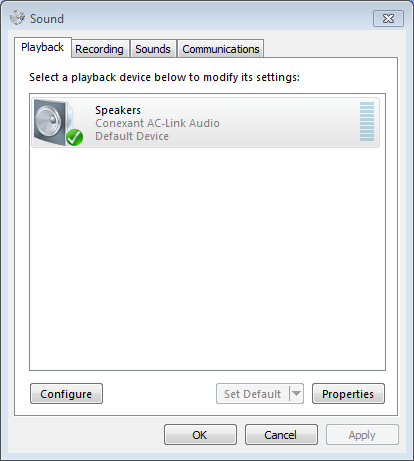
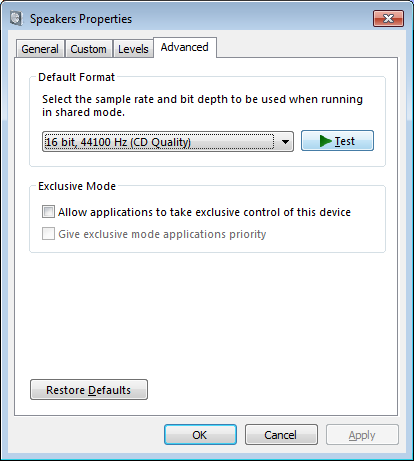
 I installed Windows 7 (32-bit) from my home Windows Deployment Server with no problem. This one took longer than the less-than-20-minute installs I’d been experience. I’m not sure why. It wasn’t terribly longer, but about 30-40 minutes I think. I ran Windows Update and it got all the latest drivers. A quick check in Device Manager showed no device problems. Sweet. I began testing things. Audio playback was the last thing I played around with. System sounds, MP3, WMV audio, CD audio…all worked. Then I put in a DVD (Pirates of the Caribbean to be specific). The machine suddenly sounded like a machine gun shooting back at me. Video playback was fine, but audio playback couldn’t work. I spent a few minutes tinkering then headed to the interweb for help. My search was hp ze2000 dvd audio not working windows 7 (I type that here in hopes to help some others). I tried other search terms (dvd audio windows 7 ze2000, dvd audio problems windows 7) and yielded others having problems but no working solution. Some suggested bad drivers and pointed to older drivers (which I tried and wouldn’t install).