If you are like any other developer, including me, you probably disregard most warnings and are usually the same type that keeps clicking next when installing things without paying attention to detail.  That’s okay I do it too.

In the release of Silverlight 3 Beta, we noted that this is a developer release and that no “Go Live” licensing was going to be available for this release.  What this means is that we don’t recommend putting things in production as we’ve not exposed or wired up the end-user runtime for Silverlight 3.  The only way people can view Silverlight 3 content during this Beta phase is by having one of the versions of the developer runtime for either Windows or Mac installed.  We’ve not integrated the end-user upgrade/install into the template for now.  So what does this mean to you when you put a sample out for people to see in your organization or perhaps if you have a preview of a product or something and users visit this application.  Here’s a few scenarios for you – keeping in mind the information below is related to the application being build in Silverlight 3: No Silverlight installed, Silverlight 3 installed, Silverlight 1/2 installed and a note about the plugin MIME type.

Scenario: No Silverlight Installed

If the user has no previous version of Silverlight installed at all, they’ll be presented with whatever your default “not installed” experience is.  If you’ve don nothing to customize this, shame on you :-).  The default Visual Studio templates will simply provide you with a static image.  That link in the templates links to a “coming soon” page which describes the situation.  You can view that page here: Silverlight 3 coming soon page.  If the user installs one of the developer runtimes then they’d be able to review your application.

NOTE: People with Silverlight 3 Developer runtimes cannot “upgrade” to an end-user runtime.  This means that if an end-user (non-developer) installs the developer runtime, then when Silvelright 3 releases they will have to manually uninstall the developer runtime to get the update of the released runtime.  If you’re a developer, you probably don’t care and future developer runtimes can install on top of other developer runtimes.  This is one of the driving reasons for no Go Live support at this time.

You should inform your viewers of your beta sample of the scenario and what they may have to do in the future.

Scenario: Silverlight 3 developer runtime installed

If the user has the correct version of the Silverlight 3 runtime as defined by your application, then they will be able to view your application.  You define the minimum version of the runtime required when you instantiate the plugin using the minRuntimeVersion parameter.  This might look like:

   1: <object data="data:application/x-silverlight-2," type="application/x-silverlight-2">
   2:     <param name="minRuntimeVersion" value="3.0.40307.0" />
   3:     ...
   4: </object>

If the user has the minimum you specified, all should be well.

Scenario: Silverlight installed (any released version)

Ah, this is the tricky one.  If the user has any released version of Silverlight (1.0 or 2), the experience they see at your beta sample will be driven off of two properties as you instantiate the plugin: minRuntimeVersion and autoUpgrade.  Let’s look at what will happen and assume that the user has Silverlight 2 installed.

minRuntimeVersion=”3.0.40307.0” and autoUpgrade=”true” – if you do nothing else, the user will see this:
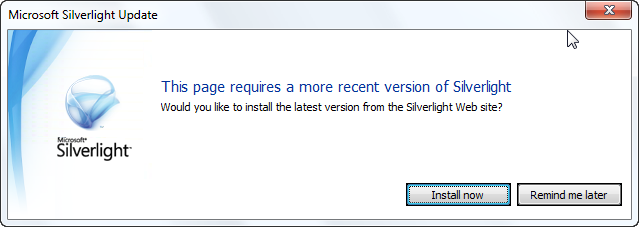
Silverlight default auto upgrade

This is bad on a few levels.  First because it isn’t a customized experience, it is the default.  Second because the “install” link will take them to the latest released runtime – which they already have most likely.  What happens?  The user feels like they are in and endless loop of Visit Site –> prompted to upgrade –> seemingly install –> visit site –> prompted to upgrade –> repeat.  This will frustrate your beta visitor and confuse you :-). 

You should always customize the user experience for the end user.  For beta, here’s what I recommend doing to ensure they aren’t confused with the goals being the following:

  • Detect if the user needs to upgrade to see your beta sample
  • Inform them of the situation and that your sample is beta
  • Direct them to the coming soon information page for Silverlight 3

Here’s what you need to do.  Ensure that your application (object tag) is within some type of HTML container, like a div and give that an appropriate ID.  In your plugin instantiation you’ll want to add 3 parameters like this:

   1: <div id="silverlightControlHost">
   2:     <object data="data:application/x-silverlight-2," type="application/x-silverlight-2">
   3:         <param name="minRuntimeVersion" value="3.0.40307.0" />
   4:         <param name="autoUpgrade" value="false" />
   5:         <param name="onerror" value="pluginError" />
   6:         ... other param values as required ...
   7:     </object>
   8: </div>

The minRuntimeVersion specifies the version required for your application, which for Silverlight 3 beta is 3.0.40307.0.  The second is to turn autoUpgrade to false.  This prevents the default experience.  The third is to add an error handler as since autoUpgrade is now false it will throw an error saying that the required version isn’t installed.  In your error function you would want to do something like this:

   1: function pluginError(sender, args) {
   2:     if (args.ErrorCode == 8001) {
   3:         var msg = "This sample application was built with Silverlight 3 Beta.\n";
   4:         msg += "You currently have Silverlight installed, but not the version required to view this sample.\n\n";
   5:         msg += "For more information about Silverlight 3, please visit: \n";
   6:         msg += "<a href=\"http://go.microsoft.com/fwlink/?LinkID=141205\">Silverlight 3 Coming Soon</a>.";
   7:  
   8:         var hostContainer = document.getElementById("silverlightControlHost");
   9:         hostContainer.innerHTML = msg;
  10:     }
  11:     else {
  12:         // handle other plugin errors here
  13:     }
  14: }

The error code of 8001 means that an upgrade is required.  Since we know we have a beta app and we know that the user has some version of Silverlight installed, but not the beta version.  Replace the container inner content with some HTML explaining that your application is a sample application and direct them to the coming soon page for more information.  This way your users aren’t sent in an endless loop, get confused, and hate you.

Why isn’t the <object> type attribute “application/x-silverlight-3”?

A common misconception is that the data and type attributes on the plugin object directly correlate to the runtime version of the plugin you are using.  This is not true.  Just because you have a Silverlight 3 application does not mean you need to change it to type=”application/x-silverlight-3” and in fact you’ll have problems if you do!  These attributes refer to the plugin MIME type and not the runtime version.  You would still use application/x-silverlight-2 for a Silverlight application (in fact you could use x-silverlight if you wanted to handle edge cases of Silverlight 1.0).

Summary

Beta software is fun and confusing.  It’s fun for us developers because we’re technically astute, understand what beta means, and are probably accustomed to working with others’ beta software all the time.  For end users, it can be confusing because they see things/links/articles and want to check it out, but may not have the required software.  As developers we can do things to help our beta visitors understand the scenario much clearer and do our job to inform.

So if you are showing Silverlight 3 beta samples, please take an extra moment to follow this guidance and trap the upgrade error code and handle it with information to inform the user.

Hope this helps!
One of the new features in Silverlight 3 is providing an application navigation framework via the Frame and Page controls in the APIs.  If you saw my guide to Silverlight 3, you may have seen the section on navigation which describes the functionality and as well has a link to a video tutorial about it.

I wanted to augment that tutorial with some additional information about URI routing, which I think is one of the great features of the framework.  You see typically your UriMapper might have a 1:1 mapping and look something like this (note in my sample here I’m putting this in App.xaml, but the model may change in the future of where you can/should place UriMapper):

   1: <Application xmlns="http://schemas.microsoft.com/winfx/2006/xaml/presentation"
   2:              xmlns:x="http://schemas.microsoft.com/winfx/2006/xaml" 
   3:              x:Class="NavigationSample.App"
   4:              xmlns:navcore="clr-namespace:System.Windows.Navigation;assembly=System.Windows.Controls.Navigation"
   5:              >
   6:     <Application.Resources>
   7:         <navcore:UriMapper x:Key="uriMapper">
   8:             <navcore:UriMapping Uri="About-Us" MappedUri="/Views/AboutPage.xaml" />
   9:         </navcore:UriMapper>
  10:     </Application.Resources>
  11: </Application>

But what if you still wanted to provide friendlier routes, obfuscate the physical location of the view, but handle the default scenario?  You can as long as you follow your own naming conventions.  Take for instance if we contain all our pages in a folder called Views in our application.  We could then map our routes like this:

   1: ...
   2: <navcore:UriMapper x:Key="uriMapper">
   3:     <navcore:UriMapping Uri="{}{page}" MappedUri="/Views/{page}.xaml" />
   4: </navcore:UriMapper>
   5: ...

You could also follow some naming conventions if you wanted to make sure you limited it to only pages or something so you require the view page to be named SomethingPage.xaml and then can have a route like:

   1: ...
   2: <navcore:UriMapper x:Key="uriMapper">
   3:     <navcore:UriMapping Uri="{}{page}" MappedUri="/Views/{page}Page.xaml" />
   4: </navcore:UriMapper>
   5: ...

The navigation routes are read top down so you can still have explicit (or additional) routes in addition to the default.  So given:

   1: ...
   2: <navcore:UriMapper x:Key="uriMapper">
   3:     <navcore:UriMapping Uri="About-Us" MappedUri="/Views/AboutPage.xaml" />
   4:     <navcore:UriMapping Uri="History" MappedUri="/Views/AboutPage.xaml" />
   5:     <navcore:UriMapping Uri="{}{page}" MappedUri="/Views/{page}.xaml" />
   6: </navcore:UriMapper>
   7: ...

A request to About-Us, History or About would navigate to /Views/AboutPage.xaml regardless.  This provides you some flexibility and granularity in your implementation and also provides additional SEO points for your content.

I really like the UriMapper in the navigation framework and have been lobbying to change the default templates Visual Studio spits out to use the UriMapper by default.  It provides you with a cleaner (and perhaps shorter) URI as well as obfuscates your “code” from your URI logic.  Be sure to check out the video if you aren’t familiar with the framework at all.

I hope this helps and would love to know what you think about the navigation framework?


This work is licensed under a Creative Commons Attribution By license.

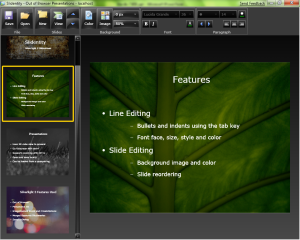
One of the great things about the Silverlight team is that usually in the home stretch most of the feature samples of numerous ‘hello world’ type examples start shaping into creative ideas to demonstrate various features. 

Slidentity by Mike Harsh (screenshot)One such example is a full Silverlight 3 application that Mike Harsh created to actually demonstrate various features and it is what he used to present his session talk as well.  He currently calls it Slidentity and it demonstrates:

  • Various skinned control usage
  • Perspective 3D (when you view the slide show)
  • Open/Save data
  • Out-of-browser execution
  • User input
  • Navigation framework

It’s a creative “sample” that is actually very functional for the intended use.  Mike’s making the code available for use, so check it out on his blog: Slidentity by Mike Harsh.

I understand that there was some folks at MIX09 who weren’t happy (or maybe ‘were bored’ is the better term here) about the day 2 keynote session with Deborah Adler, a designer from New York who created the ClearRx system for medical prescriptions.  Yes, it was not your typical Microsoft keynote presentation and in fact, followed by IE8 announcements, had nothing to do with releases, Silverlight or anything like it.  Sort of.  Robby said it was the best MIX keynote ever, and if I wasn’t a geek, I’d agree (I mean, c’mon, I’m a ScottGu fanboy too).

Deborah Adler at MIX09 (photo Robby Ingebretsen)I’m guessing that those who weren’t excited about this were developers.  In some regard I can understand, but let me tell you this: if you didn’t ‘get it’ then I think you weren’t paying attention.  You see Deborah told us a story, and a very personal one.  The key thing that came out of this story is a change in her perspective on how to design: think of the user first, nothing else.  While her story applied to product packaging designs, it can easily be translated.
This is often a key principle that we forget/neglect in software design.  All too often organizations make decisions based on product raw costs, availability of existing resources, etc.  Deborah challenged this thought, and set out to prove that above all things, the user is essential.  By implementing a user-centric design approach, she put us first in the process…thinking first about how we use medical prescriptions, and the surrounding issues of safety and confusion. 

More than anything that is the inspiration I got out of this keynote (which was great and you should listen to her story…frankly, this keynote is so much better at telling her story than any of the news specials that are available about ClearRx).  I had a much greater appreciation for how user-centric design approaches can impact what we can do as developers.  It was really a reminder of how important that concept is.  The story was great, the results fantastic.  She helped start a game changing concept in prescription medicine.  She went out to challenge the norm because of the user – and did it.  After hearing this story more personally, I’m so compelled to refill my prescriptions at Target in the future, even if it isn’t as convenient.

Bravo Deborah.

PLEASE READ UPDATE: While the API for checking for updates has changed, the update model *after* that method call to CheckAndDownloadUpdateAsync is the same as described below.  See this note for updates since this article to the Out-of-browser experiences.

Wednesday at MIX09 was a great day.  I was exhausted, but after the keynote I was so high on excitement it was great.  Throughout the day Twitter was buzzing (or is it fizzing?) about all the news around Silverlight 3.  In one conversation around the out-of-browser experiences with Silverlight, I caught a conversation on Twitter about it with questions about the update model.  I jumped in which resulted in this twittersation (sorry, couldn’t resist):

Twitter conversation

So, instead of trying to cram it in 140 characters, I’ll explain here how it works, and take the liberty of using just slightly more than 140 characters.

If you aren’t familiar with the Silverlight Out-of-browser experiences (lovingly referred to as a SLOOB – nod to @bryantlikes), you may want to read my previous post which is a guide to the new features in Silverlight 3 as well as view this video demonstrating the feature.

Detaching the application

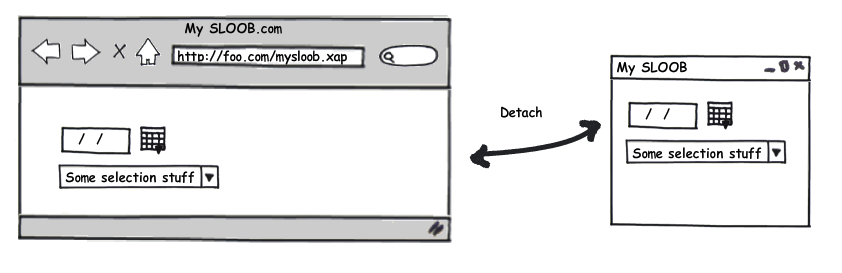
The first time your users will view your application it will be in the web context in a page somewhere.  If your application is enabled for out-of-browser (OOB) experiences, then the user can detach the application via a user-initiated action (context menu or some function in your application that calls Detach()).  That process then immediately does a few things:

SLOOB Detach

This action takes the browser (for our example let’s say being served up at http://foo.com/mysloob.xap) and creates an OOB application.  What happens here is the following:

  • The application (XAP) is requested again via the browser
  • The XAP gets stored locally in a low trust location along with metadata which includes the origin URI of the XAP as well as metadata, most importantly for this discussion the ETag information of when it was downloaded (timestamp essentially)

The first OOB launch

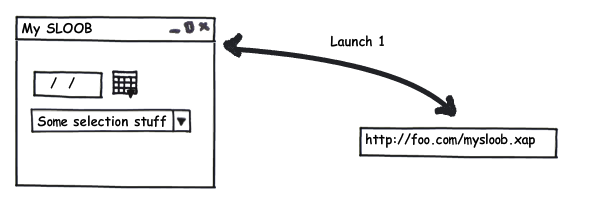
Now we are all good.  If we close the application and launch it again from the desktop now we’d initiate a startup of the application:

SLOOB Launch 1

What happens in this instance is basically the application looks at it’s metadata for the origin URI of the XAP and makes a request there with.  It compares the HTTP response data (code and ETag) for comparison.  If the app wasn’t updated, then the app launches and all is well.  In fact inspecting the request it would look something like this for our app:

   1: GET /silverlight/oob/ClientBin/OutOfBrowser.xap HTTP/1.1
   2: If-Modified-Since: Thu, 19 Mar 2009 03:52:35 GMT
   3: User-Agent: Silverlight
   4: Host: timheuer.com
   5: X-P2P-PeerDist: Version=1.0
   6: Accept-Encoding: peerdist
   7:  
   8:  
   9: HTTP/1.1 304 Not Modified
  10: Last-Modified: Thu, 19 Mar 2009 03:52:15 GMT
  11: Accept-Ranges: bytes
  12: ETag: "f2e3a81746a8c91:445"
  13: X-Powered-By: ASP.NET
  14: Date: Thu, 19 Mar 2009 03:55:18 GMT

Notice the HTTP 304 Not Modified response.  No further information is sent and we can see that no content was even delivered.  The app hasn’t changed.  At the API level, Application.Current.ExecutionState is not triggered for a DetachedUpdatesAvailable state change.

Application updated, user launches from desktop

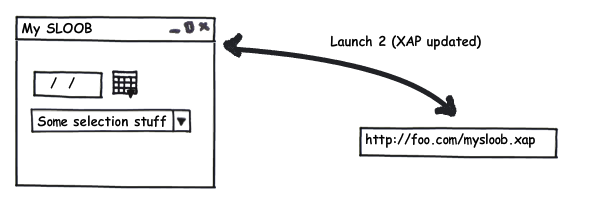
Now let’s update the application and upload to our server.  The next time the user launches the application, the same requests happen:

SLOOB Launch 2

Again, the requests are made sending the metadata information.  In this case though, there is an update.  What happens next is two fold.  Along with the response being sent with a new timestamp/ETag, the request also includes the bits of the updated application.  Looking at the request it would look like:

   1: GET /silverlight/oob/ClientBin/OutOfBrowser.xap HTTP/1.1
   2: If-Modified-Since: Thu, 19 Mar 2009 03:52:35 GMT
   3: User-Agent: Silverlight
   4: Host: timheuer.com
   5: X-P2P-PeerDist: Version=1.0
   6: Accept-Encoding: peerdist
   7:  
   8:  
   9: HTTP/1.1 200 OK
  10: Content-Length: 15557
  11: Content-Type: application/x-silverlight-app
  12: Last-Modified: Thu, 19 Mar 2009 03:56:29 GMT
  13: Accept-Ranges: bytes
  14: ETag: "ce39d0ae46a8c91:445"
  15: X-Powered-By: ASP.NET
  16: Date: Thu, 19 Mar 2009 03:56:45 GMT
  17: <data>

Where “<data>” in the snippet above would actually be the bytes (notice the Content-Length and Content-Type headers) of the updated XAP.  Two things happen now:

  • Application.Current.ExecutionState changes to a DetachedUpdatesAvailable state. 
  • The XAP in the local storage location is updated to the new bits.

Now right now there is no option to decline the updated bits.  If the app is updated, your users will get them.  This is something the team is considering understanding different scenarios.  Also, there is no way to force the user to shutdown the app or prevent them from continuing.  You should build your app in a manner that if an update occurs that perhaps you block the UI until the update is launched.  Re-launching the application (from the local machine) would startup again with the newly downloaded bits and the updated request would look again similar to the first:

   1: GET /silverlight/oob/ClientBin/OutOfBrowser.xap HTTP/1.1
   2: If-Modified-Since: Thu, 19 Mar 2009 03:56:49 GMT
   3: User-Agent: Silverlight
   4: Host: timheuer.com
   5: X-P2P-PeerDist: Version=1.0
   6: Accept-Encoding: peerdist
   7:  
   8:  
   9: HTTP/1.1 304 Not Modified
  10: Last-Modified: Thu, 19 Mar 2009 03:56:29 GMT
  11: Accept-Ranges: bytes
  12: ETag: "ce39d0ae46a8c91:445"
  13: X-Powered-By: ASP.NET
  14: Date: Thu, 19 Mar 2009 03:57:12 GMT

And that’s the basic mechanism of it.  When an application is detached, metadata is stored about that app.  Each launch it does a check against that metadata to see if an update is visible.  If the app is offline, that’s fine, it won’t block the app from launching.  This is very similar to the .NET Framework’s ClickOnce concept in deployment.

Contrast with Adobe AIR Update Framework

Kevin asked me to contrast that with how AIR does it because he felt that “in AIR, very straightforward.”  Now, as you can also see in the initial conversation, I admitted not knowing how AIR worked.  I’m basing the following (and I won’t go deep to get myself into “you’re an idiot” trouble) off of my research in the Adobe AIR developer tutorial on Using the Adobe AIR Update Framework

Now as far as I can tell, first the update framework is not a part of the core AIR runtime and [UPDATE] is avialable in the AIR 1.5 SDK (thanks David for the note) is a separate plugin/module/whatever-term-would-be-appropriate-for-the-runtime for AIR.  Mihai in the tutorial points to needing to download the update framework which apparently is a lab framework (I’m not sure if that means beta, supported or what – if someone knows please comment)?

Once the framework is included the next step is that the developer has to create an update manifest which is described as:

This is a small XML file that keeps information needed by the updater (for example, what version is available, from where to take it, and what info to display). This file sits on your server, and when the application starts up it loads this file to see if any updates are available.

Essentially a file sitting on some location that the app can retrieve (presumably a web server).  The developer then implements an event handler on the AIR WindowApplication.creationComplete event to check for an update.  This includes about 10-15 lines of code to tell the update framework where the manifest file is and to attach to some additional event handlers and code.  When the update is noticed and needed a prompt will occur and AIR has a default UI that would be shown:

Adobe AIR Update Dialog

I like the default UI, it’s informative.  Notice the Release Notes information.  This information comes from the manifest file.  I like that too…good idea.

What it appears to me though is that when the developer has an update the manifest needs to be manually updated or no update events would be triggered.  Perhaps that’s a good thing for granular control over optional events.  I couldn’t find information if you can modify whether “Download Later” was an option or not (thus forcing an update).

Summary

So there you have it.  In Silverlight 3 you have a framework to enable you to auto update your bits.  We’re still in beta so things may change and we know there are questions that you may have on our model (if you have those questions, please leave a comment here).  In AIR you have a framework that doesn’t appear to be a part of the core runtime but that provides the same methods for providing notification to your users.  If I’ve gotten my interpretation of the AIR tutorial wrong, please someone kindly correct me as it wouldn’t have been my intent to do so.

I hope this helps understand the model.  If it didn’t, then perhaps I should have just used 140 characters.


This work is licensed under a Creative Commons Attribution By license.